
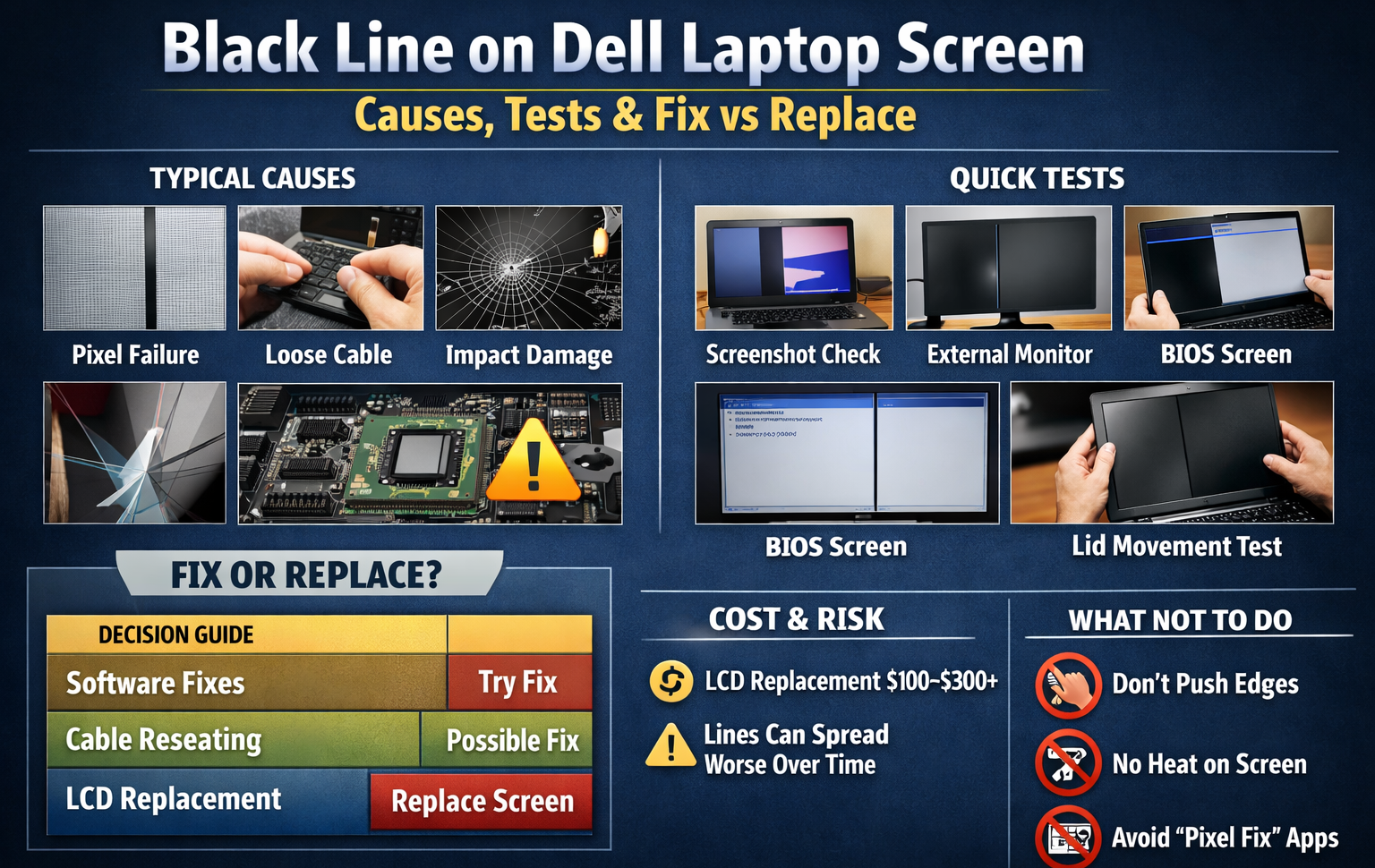
A horizontal black line on dell laptop screen may be caused by a display panel issue. Pressure damage and ribbon cable are also. It could also be due to the refresh rate or aging of the backlight layers. The screen’s orientation helps identify the cause.
Many Dell laptops include an LCD self-test; if a line appears during it, the panel is defective and cannot be fixed by settings or drivers. One can perform an LCD color test using screen color-checking tools. Avoid updating drivers immediately without confirming the issue.
The problem could be in either the software or the hardware. This page will provide clear explanations of the tests. We’ll do our best to help you confidently decide whether a fix is possible or if a replacement is necessary
What a Black Line on Dell Laptop Screen Means
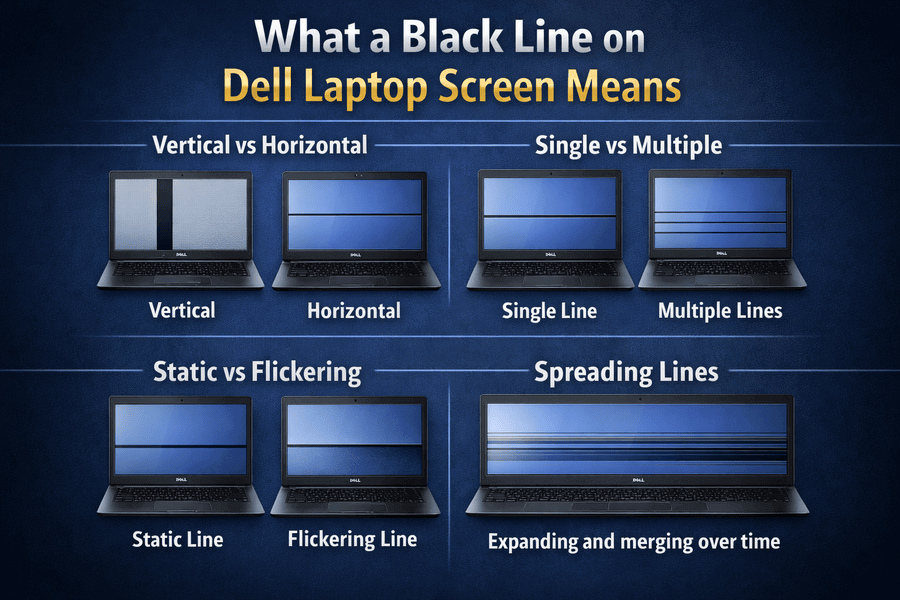
Vertical vs Horizontal Black Lines
A vertical black line usually points to a column-level failure in the display panel, the internal ribbon cable, or pressure-related damage. A horizontal black line is more often observed due to row-level panel failure, refresh rate conflicts, or aging backlight layers. The orientation matters because it narrows down the root cause quickly.
Static Lines vs Spreading or Fading Lines
A static line that never changes often indicates permanent damage to the LCD panel. Lines that slowly spread, fade, or multiply over time are a stronger warning sign of panel degradation or connector wear. If the line grows longer after each restart, it is rarely a software issue.
When the Line Appears (Startup, BIOS, Windows)
If the black line on dell laptop screen or other laptop screen is appearing before Windows loads or is visible in the BIOS screen, the problem is almost certainly hardware. If it only appears after logging into Windows, software or driver conflicts remain possible. Timing is one of the most reliable diagnostic clues.
Is It Really the Screen? Run These Quick Tests First
Screenshot Test (Panel vs Software Check)
Take a screenshot while the line is visible. If the line does not appear in the screenshot, the issue is at the physical display level. This rules out GPU rendering and software overlays immediately.
External Monitor Test (Rules Out GPU Issues)
If laptop is showing some display error or even black line on dell laptop screen is disturbing display, take these important steps. Connect your laptop to an external monitor using HDMI or USB-C. If the external screen looks normal, the GPU is fine, and the laptop screen or cable is at fault. If both screens show the same line, the GPU or motherboard becomes the primary suspect.
BIOS / Pre-Boot Screen Check
Restart and enter the BIOS menu. A line visible here confirms the problem exists outside the operating system. This test alone eliminates most software-related explanations.
Dell LCD Built-In Self Test (BIST)
Many Dell laptops support an LCD self-test that cycles through solid colors. If the black line on dell laptopn screen appears during this test, the LCD panel itself is defective. No driver or setting can fix this outcome.
Common Causes of Black Lines on Dell Laptop Screens
LCD Panel Failure (Most Common Cause)
LCD panels contain millions of tiny subpixels arranged in rows and columns. Failure in one column or row creates a permanent line. This is the most common cause, especially on laptops several years old.
Loose or Damaged Display Cable
The ribbon cable running through the hinge can loosen or wear over time. Lines that move slightly when you adjust the screen angle often point to a connector issue rather than full panel failure.
Graphics Driver or OS-Level Issues
Outdated or corrupted drivers can cause temporary artifacts. These issues usually disappear after reinstalling drivers and never appear in BIOS or pre-boot screens.
GPU or Motherboard Problems (Less Common)
A failing GPU can generate black line on dell laptop screen across all displays. This is rarer and usually accompanied by flickering, freezing, or crashes.
Heat, Pressure, and Age-Related Degradation
High heat, repeated lid pressure, and normal aging weaken internal layers. Thin-bezel designs are more vulnerable to this type of wear.
How to Fix a Black Vertical Line on Dell Laptop Screen
Software Fixes Worth Trying First
Update or reinstall graphics drivers and make sure Windows display settings match the panel’s native resolution. These steps are helpful only if the black line on Dell laptop screen is caused by a software issue.
When Cable or Connector Issues Are Likely
If the line shifts when opening or closing the lid, reseating or replacing the display cable may resolve the issue. This is more common in business laptops that are used frequently.
Signs the LCD Panel Is Failing
A black line on Dell laptop screen that stays perfectly straight, appears in the BIOS, and never shows in screenshots almost always means a panel replacement is required. You can also check panel issues using other colors.
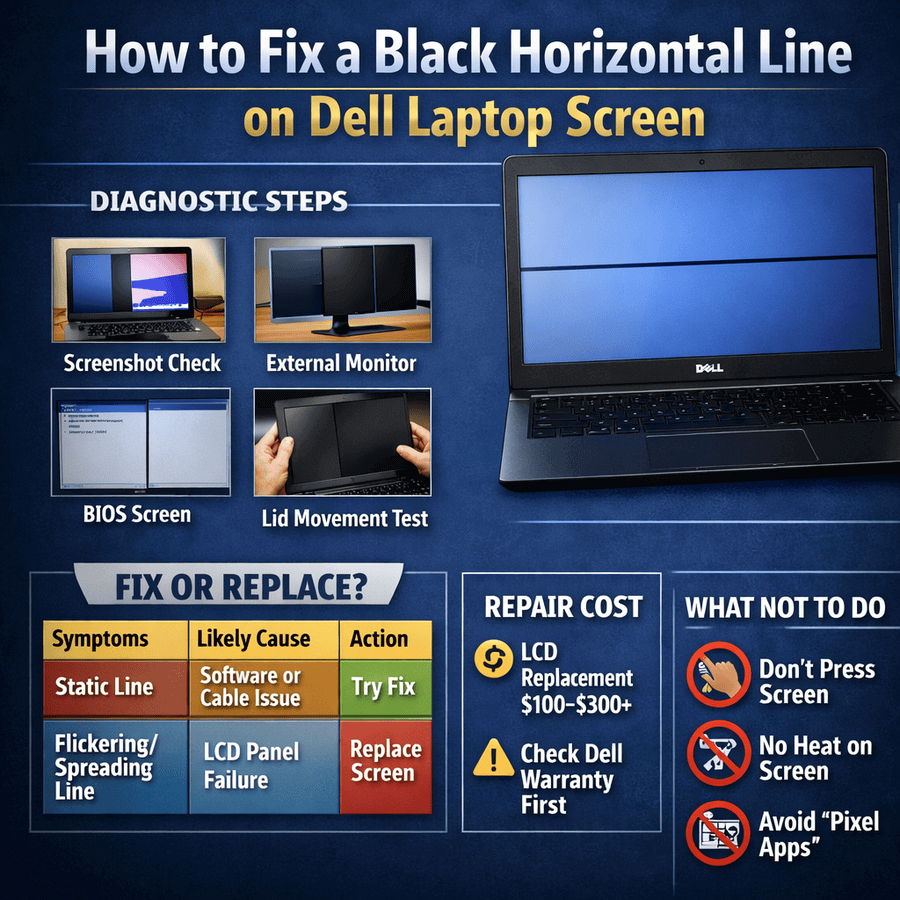
How to Fix a Black Horizontal Line on Dell Laptop Screen
Temporary vs Permanent Horizontal Lines
Temporary horizontal lines often relate to refresh-rate mismatches or power-saving features. Permanent ones usually indicate internal panel damage.
Refresh Rate and Driver-Related Cases
Lowering the refresh rate to a standard value can sometimes stabilize the display. If this resolves the black line on Dell laptop screen, no hardware repair is needed.
When Horizontal Lines Mean Panel Damage
A line that spans the screen edge to edge and persists through reboots signals irreversible panel failure.
How a Screen Checking Tool Helps Test Colors and Display Quality
A screen checking tool helps you test screen colors on laptops and mobile devices.
It allows you to view solid and custom colors to check brightness and color accuracy.
You can easily spot pixel issues, lines, or uneven areas on the display.
This tool helps identify screen issues early and ensures better display performance.
Fix or Replace? A Clear Decision Framework
Issues You Can Monitor Safely
Black line on Dell laptop screen issues that appear briefly and disappear after driver updates or sleep cycles can be monitored, as they rarely worsen quickly.
Problems That Will Get Worse Over Time
Spreading lines, fading edges, and grayscale effects almost always progress. Waiting rarely improves the outcome.
When Screen Replacement Is the Only Real Option
Visible lines in BIOS or LCD self-tests require a screen replacement. Software fixes do not apply.
Many related color videos can be seen on different platforms. But they are just videos, not a real testing tool. We suggest a tool that can perform any test of your choice.
Warranty, Cost, and Repair vs Replace Logic
If the black line on Dell laptop screen appears on a device under warranty, replacement is straightforward. For older laptops, compare the cost of screen replacement with the device’s remaining value.
Common Misdiagnoses That Waste Time
IPS Glow or Backlight Bleed vs Line Defects
Glow and bleed appear as uneven lighting, not sharp lines. Confusing these delays proper diagnosis.
Why Driver Reinstalls Can Hide Hardware Failure
Driver reinstalls may temporarily reset display states, masking panel damage without fixing it.
GPU Artifacts vs Panel Damage
If a black line on Dell laptop screen is caused by GPU artifacts, it will appear in screenshots and on external monitors. Panel damage will not.
- Dell Model-Specific Patterns
- Dell Inspiron Screen Line Issues
Often linked to cable wear and long-term hinge movement.
Dell XPS Thin-Bezel and Heat-Related Problems
High-resolution panels and compact designs increase thermal stress.
Dell Latitude and Business Models
Frequent opening and closing increases cable fatigue risk.
Alienware and High-Performance GPU Scenarios
Heat buildup can accelerate panel aging even when the GPU is healthy.
Quick Diagnostic Checklist (Save This)
60-Second Yes/No Checklist
Does the line appear in BIOS?
Does it show in screenshots?
Does it appear on an external monitor?
What Each Result Tells You
These answers isolate panel, cable, or GPU issues without guesswork.
Your Next Action Based on the Outcome
Proceed with repair for a black line on Dell laptop screen only after confirming the source of the failure.
Prevention Tips to Avoid Future Screen Line Issues
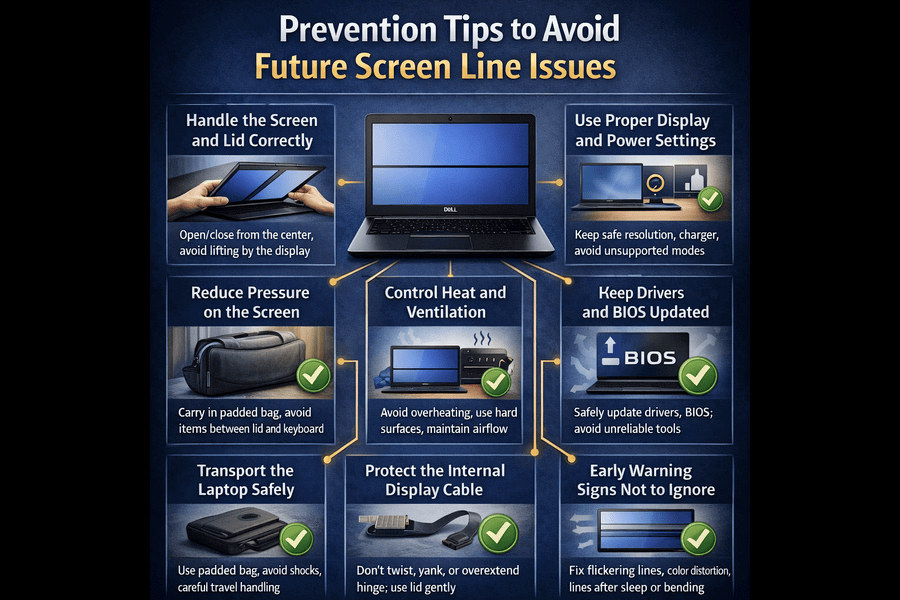
Heat and Ventilation Best Practices
Keep vents clear and avoid prolonged high-temperature use.
Safe Lid Handling and Pressure Avoidance
Never press the screen or close the lid with objects inside.
When Software Maintenance Actually Helps
Regular driver updates help only with software-induced artifacts.
Summary Decision Path
Firstly, confirm the black line issue on your Dell laptop screen. Determine whether the problem is caused by software or hardware before taking any action. If your laptop is under warranty, replacing the device is usually the better choice. You can opt for professional repair if the device is high-value and the warranty is no longer available. However, if the laptop is old and the screen panel is failing, replacing the device may be the smarter choice to avoid ongoing problems and extra costs
Frequently Asked Questions
Yes, if the issue is caused by a failing screen panel, the lines may worsen or increase in number over time.
If the lines appear only on the laptop’s screen, not in screenshots or on an external monitor, it’s usually a sign of a hardware problem with the screen.
In rare cases, a graphics card issue can cause screen lines. However, most of the time, screen lines are linked to hardware failures, such as the display panel.
Lines on the screen typically won’t disappear on their own if caused by hardware issues. They may persist or get worse over time, but temporary software glitches can sometimes be resolved.
One way to check is by connecting the laptop to an external monitor. If the external monitor doesn’t show the lines, it suggests a problem with the laptop’s screen rather than the software.
Yes, but GPU-related lines appear on all displays and in screenshots.