
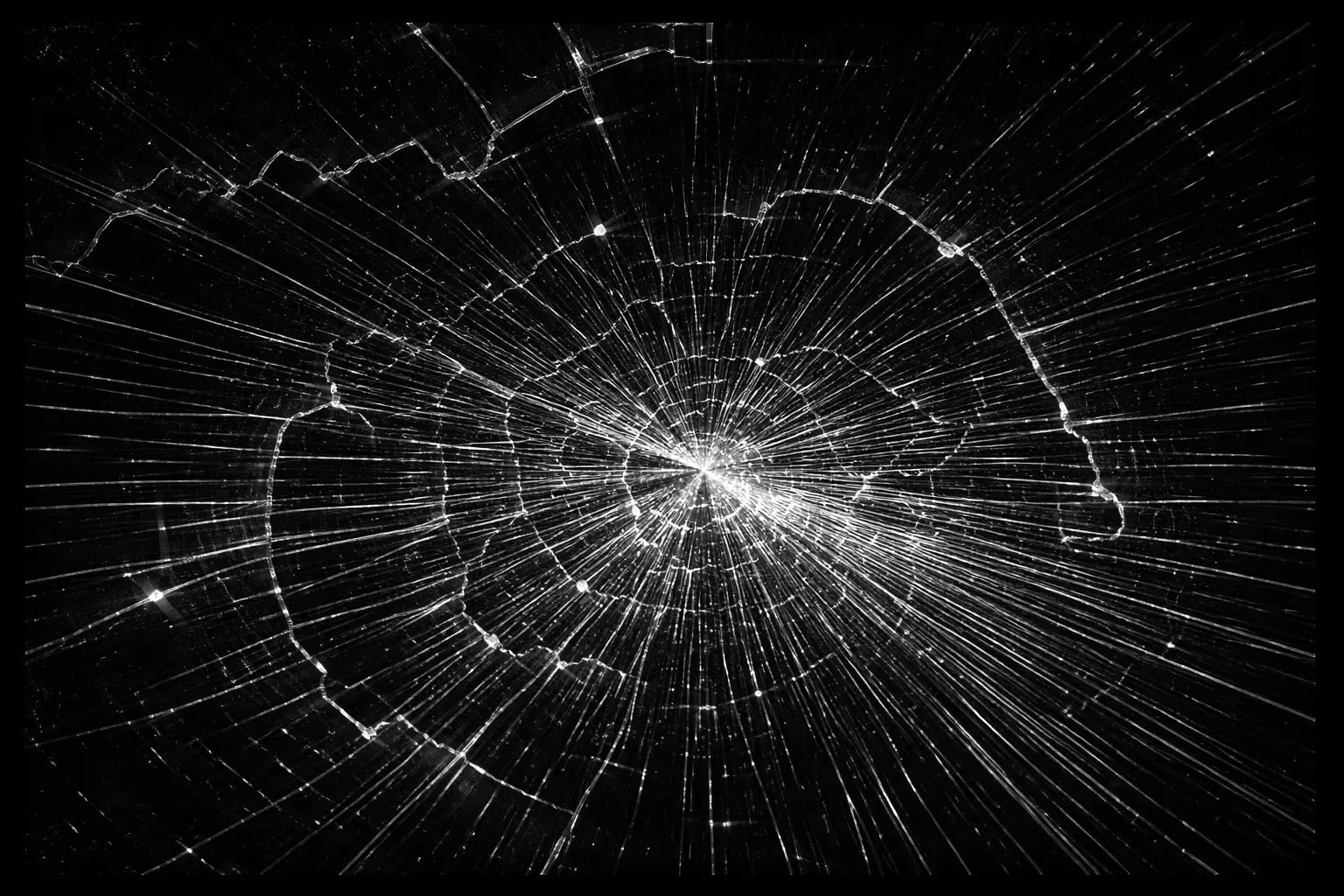
People search for a fake broken screen when they want to prank safely, test reactions, or create realistic cracked-screen visuals without damaging a real device. Most confusion comes from using static wallpapers, unsafe downloads, or prank tools that trap users in full screen with no clear exit. This page explains exactly what a fake broken screen tool is, how to use it safely, when it makes sense, and how to avoid common mistakes.
What Is a Fake Broken Screen Tool?
A fake broken screen tool is an online visual simulator that displays a realistic cracked, shattered, or glitched screen effect on a device without causing any physical or software damage. Unlike real screen failures, this effect is purely visual and disappears instantly when the tool is closed.
The key distinction is that a tool simulates damage rather than modifying system files, wallpapers, or display settings. Nothing is installed, saved, or altered on the device.
Online tool vs wallpaper
An online fake broken screen tool runs directly in the browser and can enter full-screen mode for realism. A wallpaper, by contrast, is a static image that replaces the background and often looks less convincing once the device is used.
How it simulates damage without affecting hardware
The tool overlays high-resolution crack patterns, dead-pixel effects, or glass-shatter visuals on top of the active display. Because it runs at the browser level, it never touches the screen hardware, operating system, or apps.
Supported devices
Most fake broken screen tools work across:
- Smartphones (Android and iOS browsers)
- Laptops and desktops (Windows, macOS, Linux)
- External displays and TVs via browsers or screen casting
Fake Broken Screen vs Wallpapers vs Screensavers
Understanding the differences helps avoid frustration and failed pranks.
Tool vs static image
A tool reacts like a real broken display: it fills the screen, blocks interaction visually, and looks dynamic. Wallpapers are immediately exposed when apps open or icons move.
Broken Screen Screensaver for Fun
A screensaver is a static image that you can use for fun or to style your screen.
Realism and interaction
Tools provide higher realism because they sit on top of everything else. Screensavers and wallpapers break immersion as soon as the device wakes or the cursor moves.
Safety and exit control
Good tools clearly explain how to exit full screen (usually via Esc, swipe gestures, or browser controls). Wallpapers can confuse users who do not know how to reset them.
When each option makes sense
- Tool: short-term pranks, demonstrations, content visuals
- Wallpaper: novelty use, static mockups
- Screensaver: limited use on shared or idle displays
Why People Use Fake Broken Screen Tools?
This keyword is not about damage. It is about controlled illusion.
Harmless pranks and jokes
The most common use is pranking friends, family, or coworkers without risk. The shock is temporary and reversible.
Testing reactions and awareness
Some users want to understand how they personally react to device failure or demonstrate how fragile screens appear under stress.
Content creation and visual effects
Creators use cracked-screen visuals in short-form videos on platforms like Instagram, TikTok, and YouTube to add drama or humor without post-production effects.
Educational demonstrations
Teachers and technicians use fake broken screens to explain screen protection, warranties, or the value of screen protectors without destroying real devices.
How to Use a Fake Broken Screen Tool Safely
A reliable tool should be simple, reversible, and transparent.
Step-by-step usage
- Open the tool in your browser
- Select a cracked or broken screen style
- Enter full-screen mode
- Hand the device to the prank target
Entering and exiting full screen
Most tools exit instantly using:
- Esc on desktop
- Browser back gesture on mobile
- Full-screen toggle in the browser menu
Always confirm the exit method before starting.
Device-specific tips
- On phones, lock orientation for better realism
- On laptops, increase brightness slightly
- On TVs, ensure no menus or overlays are visible
No downloads, no permissions
A safe fake broken screen tool does not request files, permissions, or installs. If it does, leave.
Full-Screen Broken Screen Prank Examples
Pranking friends on phones or laptops
Set the effect, place the device down, and wait. The moment works best when the device appears unattended.
Office or classroom prank scenarios
Use only with people who can laugh it off. Reveal the prank quickly to avoid panic or disruption.
Family and home setups
TV and shared screens work well for short pranks, especially when paired with believable acting.
Common Mistakes to Avoid
This is where most prank attempts fail.
- Using low-resolution crack images that look fake
- Forgetting how to exit full screen before starting
- Pranking stressed, busy, or unfamiliar users
- Letting the prank continue too long
A prank should surprise, not distress.
Safety, Ethics, and Moral Considerations
Even harmless tools can cause unnecessary stress if misused.
Psychological safety
Some people rely on devices for work, emergencies, or accessibility. Always consider context.
When not to prank
Avoid pranks during work deadlines, exams, emergencies, or with children and elderly users who may panic.
Keep jokes reversible
If it cannot be undone instantly, it is not a prank tool.
Tips for Making the Prank Look Realistic
Small details sell the illusion.
- Match crack style to device size
- Adjust brightness to mimic damaged glass
- Choose moments when the device is expected to be idle
Preparation matters more than shock value.
Related Tools You May Like
Many users combine fake broken screens with other visual tools.
White Screen Tool
Useful for display testing, cleaning, and brightness checks.
Fake Update Screen
Simulates operating system updates for demos or pranks. You can see different screens in videos.
Hacker Typing Simulator
Creates a cinematic “hacking” effect for fun or content.
Final Takeaway
A fake broken screen tool is about illusion, not damage. Used correctly, it enables safe pranks, creative visuals, and educational demonstrations without risk. The best approach is simple: choose a browser-based tool, understand the exit controls, respect boundaries, and keep the experience light, reversible, and harmless.