Purple Screen or Purple Tint on Monitor, TV or Phone: Causes and Fixes
A purple tint, purple lines or a screen that turns completely purple is usually caused by one of three things: a color setting, a bad video signal (cable, port or input), or a failing display panel. Most cases are settings or cable problems that you can fix in a few minutes. This guide shows how…
A purple tint, purple lines or a screen that turns completely purple is usually caused by one of three things: a color setting, a bad video signal (cable, port or input), or a failing display panel. Most cases are settings or cable problems that you can fix in a few minutes. This guide shows how to find the cause and what to do about it on phones, monitors, laptops and TVs.
Quick Diagnosis: Settings, Signal or Hardware?

Purple appears when the red and blue parts of the image are shown but green is weak or missing. Finding why green is missing tells you where the problem is:
- Take a screenshot. If the screenshot looks normal on another device, the problem is in your screen or its connection, not in the software or the content.
- Check the startup screen. On a computer, if the logo or BIOS screen is also purple, the problem is hardware (cable, port, graphics card or panel), not Windows or macOS.
- Try another device or cable. For monitors and TVs, connect a different source or use a different HDMI/DisplayPort cable. If the purple goes away, the old cable or port is the problem.
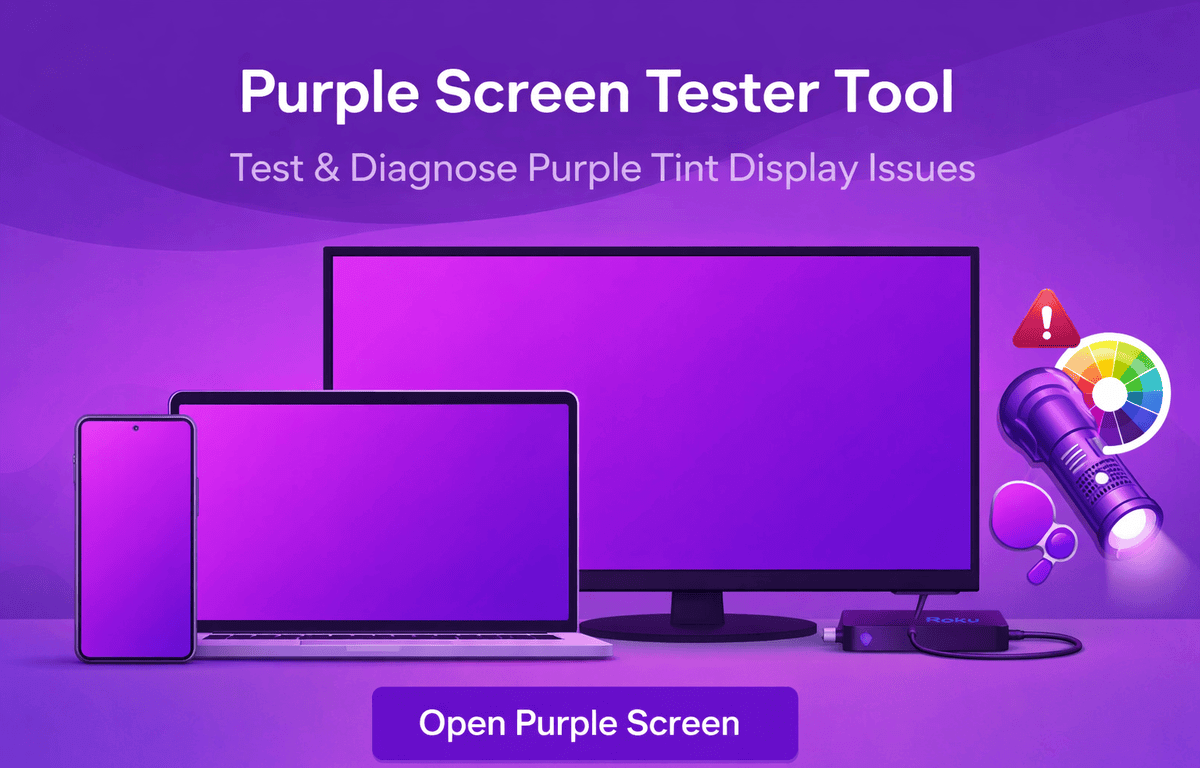
- Open a solid color test. Use the full-screen screen tester and switch between white, red, green and blue. If the green screen looks dark or black, the green channel is missing. A white screen that looks pink or purple shows the same thing.
Purple Screen on a Monitor or TV
1. Reseat or replace the cable
A loose or damaged HDMI, DisplayPort or VGA cable is the most common reason a monitor or TV turns purple or pink. With older VGA cables, a bent pin often removes one color completely. Unplug both ends, check for bent pins, reconnect firmly, and if possible try a different cable and port.
2. Check the color format setting
When a computer or console sends a color format the display does not expect (for example YCbCr instead of RGB), colors can turn purple or green. In your graphics settings (NVIDIA Control Panel, AMD Software or Intel Graphics Command Center), set the output color format to RGB and the output range to Full. On a TV, try switching the HDMI input’s color or “enhanced format” setting off and on.
3. Reset the picture settings
Use the monitor or TV menu to reset picture settings to factory defaults. Check that the color temperature or RGB gain values have not been changed.
4. Update or reinstall the graphics driver
If the purple tint appears only after Windows loads (and the startup screen looks normal), update the graphics driver from the manufacturer’s website or roll it back if the problem started after an update.
5. Test with another device
Connect a different laptop, console or streaming stick. If the purple tint stays with the monitor no matter what is connected, the monitor itself is likely faulty.
Purple Screen or Purple Line on a Phone
- Turn off color filters. On iPhone, go to Settings › Accessibility › Display & Text Size and check Color Filters and Invert Colors. On Android, check Accessibility settings for color correction, color inversion and high contrast.
- Check Night Light or Night Shift. These make the screen warmer, not purple, but combined with other filters they can create an odd tint.
- Restart the phone. A brief software glitch can cause a colored screen.
- Update the software. Some phones have had display color bugs that were fixed in updates.
A purple line, purple patch or purple “ink” that spreads after a drop or pressure is almost always physical damage to an OLED panel. It will not be fixed by settings and usually needs a screen replacement. Read our guide to lines on a phone screen for the next steps, and see common phone screen problems for other symptoms.
Purple Screen on a Laptop
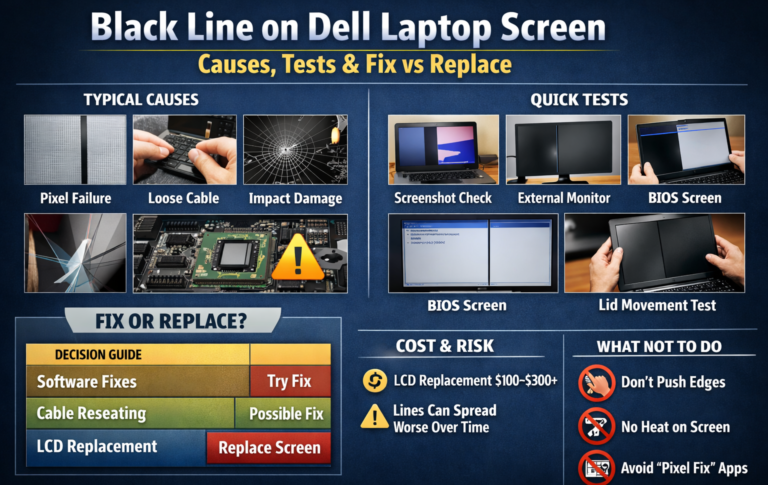
On laptops, a purple or pink tint that changes when you move the lid usually means the display cable inside the hinge is loose or damaged. If an external monitor shows normal colors, the graphics card is fine and the internal screen or its cable needs repair. Dell laptops have a built-in display self-test you can run; see our Dell laptop screen guide for how to start it.
When Is a Purple Screen a Hardware Failure?
It is likely a hardware problem if:
- The purple tint is visible on the startup or BIOS screen
- It stays after changing the cable, input and connected device
- The tint changes when you press on the screen or move a laptop lid
- There are purple lines, spots or spreading patches after a drop
In these cases, contact the manufacturer if the device is under warranty, or a qualified repair shop. Avoid opening the device yourself if it is still under warranty.
Using a Purple Screen on Purpose
A solid purple screen is also useful when nothing is wrong: for checking color uniformity, spotting stuck pixels, or as a background for photos and videos. You can open a full-screen purple background in the screen tester by selecting the purple color, or choose any shade with the custom color picker.
Frequently Asked Questions
Why did my monitor suddenly turn purple?
The most common reasons are a loose or damaged cable, the wrong color format in graphics settings, or a failing port. Reconnect or replace the cable first, then check the color format.
Can a purple screen fix itself?
Software and setting problems can go away after a restart or update. Physical damage, such as a purple line on a phone after a drop, does not fix itself and often gets worse.
Is a purple screen a virus?
It is very unlikely. If the startup screen is also purple, it cannot be caused by software running in your operating system.