Monitor Flickering? How to Find the Cause and Fix It
How to find out why your monitor or laptop screen is flickering and fix it, step by step.
A flickering monitor is distracting, tiring on the eyes and hard to diagnose, because the same symptom can come from a cable, a setting, a driver or the monitor itself. The trick is to narrow it down one step at a time. Start with the quick checks below; most flickering is fixed by the first three.
First: Is It the Monitor or the Computer?
On Windows, press Ctrl + Shift + Esc to open Task Manager and watch it for a minute.
- Task Manager flickers too: the problem is the display driver, the cable or the monitor.
- Task Manager is steady but other things flicker: an app is causing it. Update or uninstall recently installed apps, starting with the ones that flicker.
Also check whether the flicker shows on the monitor’s own menu (press the menu button on the monitor). If the monitor’s menu flickers as well, the monitor itself is the likely cause.
Fix 1: Reseat or Replace the Cable
Loose or worn cables are the most common cause. Unplug both ends of the HDMI or DisplayPort cable, check for bent pins, and plug it back in firmly. If you can, try a different cable and a different port on both the computer and the monitor. For high refresh rates and 4K, use a cable rated for it, such as HDMI 2.1 or DisplayPort 1.4.
Fix 2: Check the Refresh Rate
A wrong or unstable refresh rate can cause flicker or brief black screens.
- Windows 11: Settings › System › Display › Advanced display, then choose the refresh rate your monitor supports.
- Mac: System Settings › Displays, then pick a refresh rate from the menu.
If the flicker started after you raised the refresh rate, step it down one level and test again.
Fix 3: Update or Roll Back the Graphics Driver
Download the latest driver from NVIDIA, AMD or Intel rather than relying on Windows Update. If the flickering started right after a driver update, roll back to the previous version in Device Manager.
Fix 4: Test Variable Refresh Rate (G-Sync / FreeSync)
If the flicker happens mostly in games or on loading screens, variable refresh rate may be the cause. Brightness can change slightly as the frame rate jumps around, which is more visible on VA and OLED panels. Turn G-Sync, FreeSync or Adaptive Sync off in the graphics settings and in the monitor menu to test. If the flicker stops, try capping your frame rate a few frames below the monitor’s maximum and turn the feature back on.
Fix 5: Check Brightness and PWM Flicker
Many monitors and laptop screens dim the backlight by switching it on and off very quickly (PWM). Some people notice this as flicker or get eye strain, especially at low brightness. To check:
- Open a full white screen.
- Set brightness low, then high.
- Point your phone camera at the screen, ideally in slow-motion mode. Dark bands rolling across the image usually mean PWM dimming.
If the flicker only bothers you at low brightness, keep the monitor brightness higher and lower it in Windows night light or a darker theme instead. For sensitive users, look for monitors advertised as “flicker-free”.
Fix 6: Check the Monitor’s Own Settings
- Turn off eco or energy-saving modes and dynamic contrast, which change brightness automatically.
- Set overdrive or response time to its normal or medium setting. The highest setting can cause flickering artifacts.
- Reset the monitor to factory settings from its menu.
When the Monitor Is Faulty
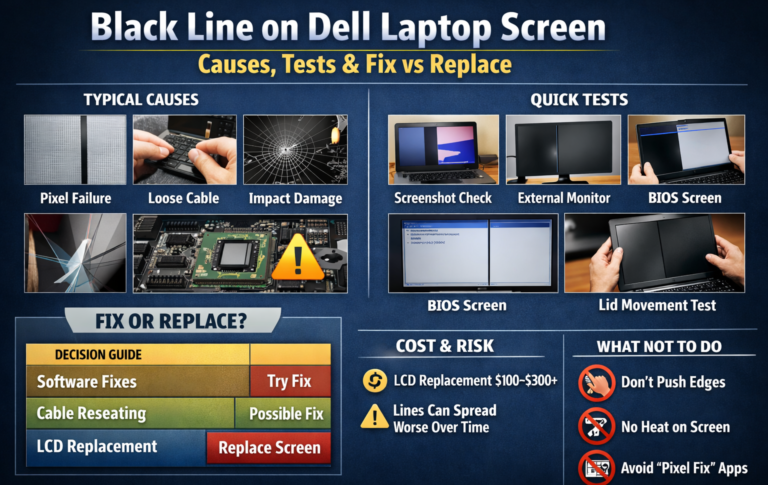
It’s likely a hardware fault if the flicker continues with a different cable, a different computer, and on the monitor’s own menu, or if it gets worse as the monitor warms up. Power supply and backlight faults often behave this way. Contact the manufacturer if the monitor is under warranty. For laptops, flicker that changes when you move the lid usually points to a worn display cable; our Dell laptop screen guide shows how to run a built-in screen test.
Quick Answers
Why does my monitor flicker only sometimes?
Intermittent flicker is usually a loose cable, a variable refresh rate issue in games, or a power-saving feature changing the brightness.
Can a monitor flicker damage my eyes?
It does not cause permanent damage, but it can cause eye strain and headaches. Fix the cause or take regular breaks.
Why does my screen flicker on video calls or in videos?
Cameras can pick up flicker from room lighting or from screen dimming that you can’t see in person. If it only appears in recordings, try changing the camera’s anti-flicker setting to 50 Hz or 60 Hz to match your local power supply.