Phone Screen Problems: Black Screen, Touch Not Responding and Other Fixes
A phone screen that goes black, stops responding to touch or starts flickering does not always mean the screen is broken. Many of these problems are caused by software, settings or a screen protector, and can be fixed in a few minutes. This guide helps you work out whether your problem is software or hardware,…
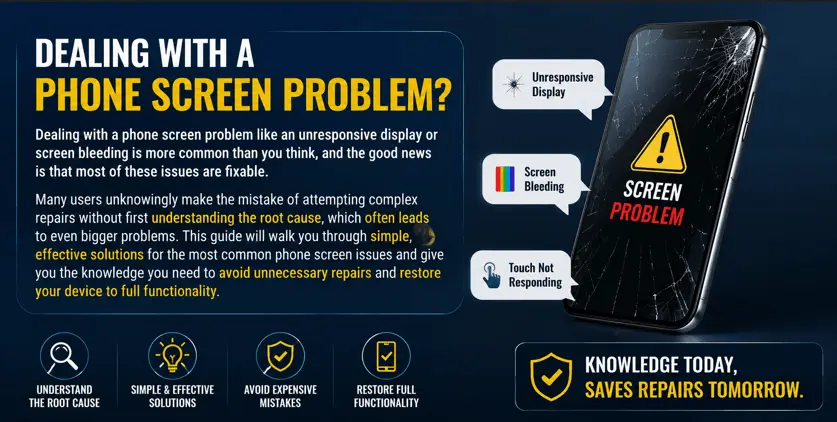
A phone screen that goes black, stops responding to touch or starts flickering does not always mean the screen is broken. Many of these problems are caused by software, settings or a screen protector, and can be fixed in a few minutes. This guide helps you work out whether your problem is software or hardware, and what to try before paying for a repair.
First: Software or Hardware?
Before trying any fix, answer these questions:
- Was the phone dropped, pressed or exposed to water recently? If yes, hardware damage is more likely.
- Did the problem start right after an update or a new app? If yes, it is more likely software.
- Does the phone still ring, vibrate or connect to a computer? If the phone works but the screen is black, the display or its connector is the likely cause, not the whole phone.
- Do you see the problem in a screenshot? If a screenshot looks normal on another device, the problem is in the display itself.
Phone Screen Is Black but the Phone Is On
If the phone rings or vibrates but the screen stays black, try these steps in order:
- Force restart the phone. On iPhone 8 and later, press and release Volume Up, press and release Volume Down, then hold the Side button until the Apple logo appears. On most Android phones, hold Power and Volume Down for 10 to 20 seconds.
- Charge it for 30 minutes. A fully drained battery can make the phone look dead. Try a different cable and charger.
- Check the proximity sensor. During calls, a dirty sensor or a thick screen protector can keep the screen off. Clean the top of the screen and remove the protector to test.
- Check brightness and accessibility settings. Brightness set to zero, or features like Screen Curtain on iPhone, can make the screen look black. You can ask your voice assistant to turn up brightness.
- Start in safe mode (Android). If the screen works in safe mode, a recently installed app is causing the problem.
If the screen stays black after a force restart and charging, and the phone was recently dropped or got wet, the display or its connector is likely damaged and needs a repair.
Touch Screen Not Responding
When the screen shows a picture but does not react to touch, start with the simple causes:
- Clean the screen with a dry microfiber cloth. Water, oil and dirt can stop touch from working or cause ghost touches.
- Remove the screen protector and case. A cracked, bubbled or thick protector is a very common cause of dead touch zones.
- Dry your hands and remove gloves. Wet fingers often cause missed or random taps.
- Restart the phone to clear a frozen app or system process.
- Update the system and apps. Touch bugs are sometimes fixed in updates.
- Check touch settings. On Android, look for touch sensitivity or glove mode. On iPhone, check Settings, Accessibility, Touch.
If only one part of the screen does not respond, or the phone registers touches by itself after a drop, the touch layer is probably damaged. This usually requires a screen replacement.
Screen Flickering
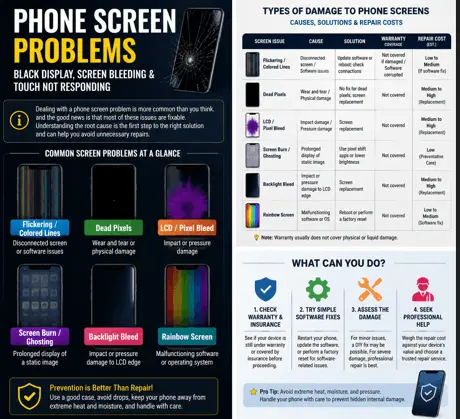
Flickering that appears only at low brightness is often normal on OLED phones because of how they dim the screen. Try turning adaptive brightness off and on again, and check for system updates. Flickering that started after a drop, or that changes when you press on the screen, usually points to a loose display connector or a damaged panel. For computer monitors, see our monitor flickering guide.
Lines, Dead Pixels and Spots
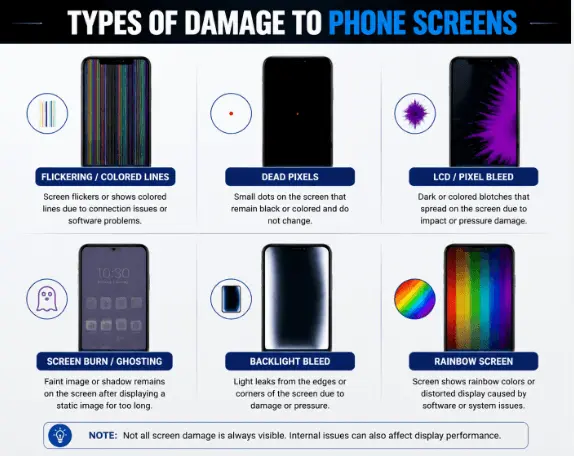
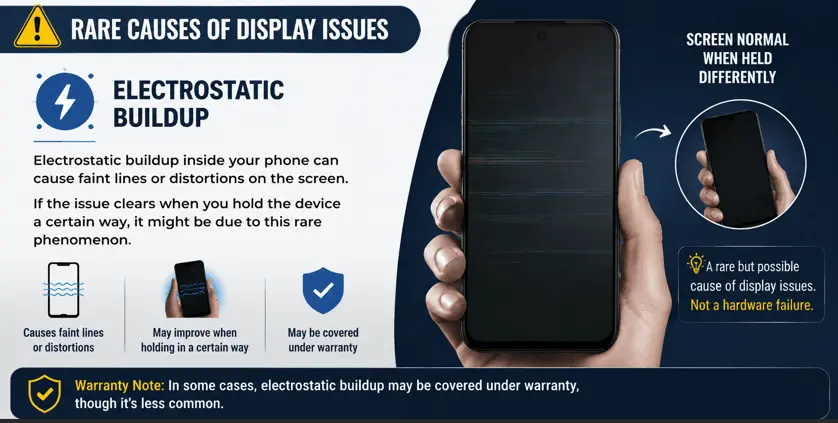
Thin lines, colored lines, black spots or single pixels that never change are almost always hardware problems:
- For horizontal or vertical lines, follow our guide to lines on a phone screen.
- To find dead or stuck pixels, open a full-screen color test with our white screen tester and switch between white, black, red, green and blue.
- For a purple tint or purple lines, see our purple screen guide.
Screen Burn-In (Ghost Images)
OLED screens can keep a faint image of things that stay on screen for a long time, such as the keyboard, navigation bar or status icons. Mild temporary image retention often fades. Permanent burn-in cannot be repaired, but you can slow it down by lowering brightness, using dark mode, using a short screen timeout and avoiding static images at full brightness. To check your phone, follow our OLED burn-in test.
Water-Damaged Screen
Water resistance ratings do not cover every situation, and seals weaken with age. If your phone got wet:
- Turn it off and do not charge it until it is completely dry.
- Wipe it and leave it in a dry, ventilated place. Avoid hair dryers and putting it in rice; both can cause more damage.
- If the screen shows lines, patches or flickering after drying, have it checked by a repair shop, because corrosion can keep spreading inside.
When to Get a Professional Repair
- The screen is cracked, has ink-like spreading spots or shows lines
- Touch does not work in one area even after removing the protector
- The screen stays black after a force restart and charging
- The problem started after a drop or water exposure
Check your warranty or phone insurance first. Display defects that are not caused by damage are often covered by the manufacturer’s warranty, but accidental damage usually is not. An authorized repair service helps keep features like Face ID, True Tone and water resistance working properly.
Frequently Asked Questions
Why is my phone screen black but I can hear sounds?
The phone is on but the display is not showing an image. Force restart it first. If that does not help, the display or its cable is likely damaged.
Can a factory reset fix screen problems?
It can fix problems caused by software, such as flickering after an update. It will not fix physical damage. Back up your data before resetting.
Why does my phone touch the screen by itself?
This is called ghost touch. It is often caused by a dirty or damaged screen protector, moisture or a faulty charger. If it continues after removing the protector and using a different charger, the touch layer may be damaged.
How can I test my phone screen for problems?
Open our screen tester in full-screen mode and check each solid color. Dead pixels, lines, uneven brightness and tints are much easier to see on a solid color.