
Monitor Calibration
These free monitor calibration patterns help you set gamma, white balance, sharpness and color saturation by eye, using only your browser. Work through the four tabs in order and adjust your monitor or laptop settings as you go. It takes about ten minutes and makes photos, videos and text look more natural on any screen.
Before You Start
- Let the screen warm up for at least 15 minutes.
- Set the room lighting the way you normally use the screen. Avoid direct light on the display.
- Reset the monitor picture settings to default, then choose a Standard, sRGB or Custom mode.
- Turn off dynamic contrast, eco or auto-brightness features, which change the picture while you adjust it.
- Set brightness and contrast first with our black level and white level test.
Step-by-Step Monitor Calibration
1. Gamma
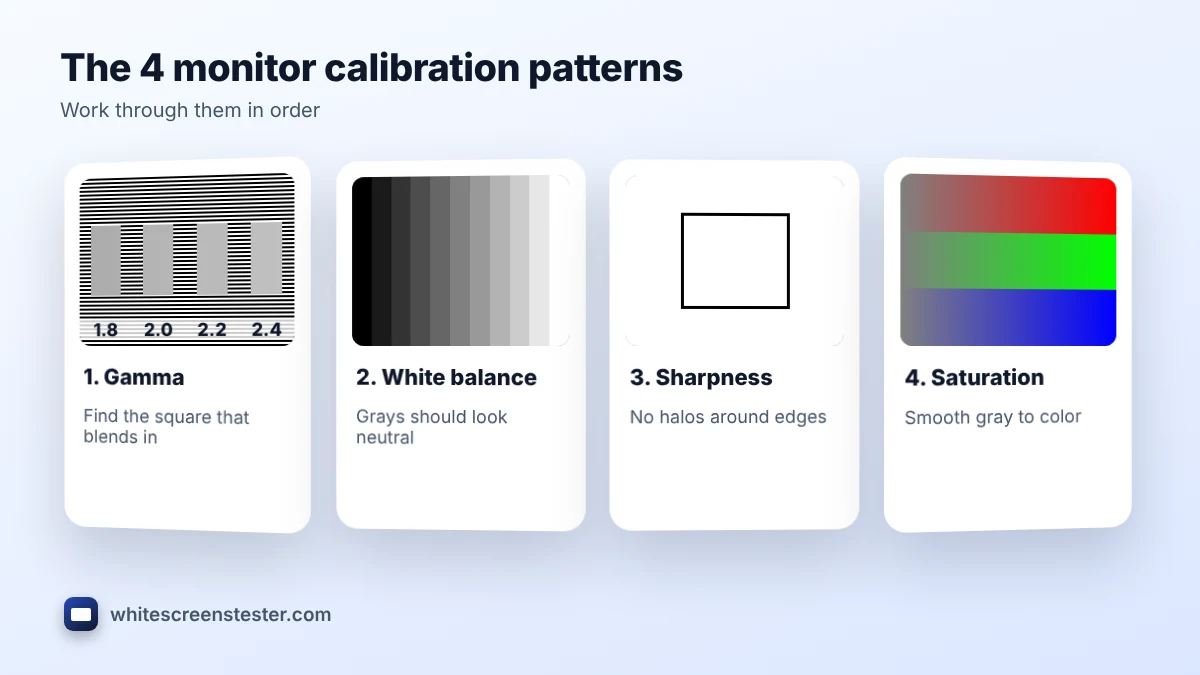
Gamma controls how bright the mid-tones look. Sit back from the screen or squint, and find the solid square that blends best into its striped background. The number under it is your current gamma. For most uses, 2.2 is the target. If another value blends best, change the gamma setting in your monitor menu or graphics control panel, then check again.
2. White balance
White balance, or color temperature, decides whether whites and grays look neutral. Each gray step should look free of any pink, green, blue or yellow tint. Start with a color temperature of 6500K, often called Warm, Normal or sRGB. If the grays still lean one way, lower that color in the custom RGB gain settings in small steps. A screen that looks too yellow is often caused by a night light mode, explained in why is my screen yellow.
3. Sharpness
Too much sharpness adds bright or dark outlines around edges and text. Look at the box and the fine lines. Lower the sharpness setting until halos disappear, then stop. On most monitors the neutral value is the default or a middle value. Text should look clean, not crunchy.
4. Color saturation
Each bar should change smoothly from gray to strong color. If the bright end looks flat for a long stretch, colors are oversaturated. This is common in Vivid or Game modes. Switch to a Standard or sRGB mode, or lower saturation, until the full gradient is visible.
Use the Built-In Calibration Tools
After setting the monitor menu, finish with the tool built into your system. It creates a color profile so apps show colors correctly.
- Windows: search for Calibrate display color, or run dccw. It walks you through gamma, brightness, contrast and color balance. For HDR screens, use the Windows HDR Calibration app as well.
- macOS: open System Settings, Displays, Color profile, then Customize and the plus button to start the calibrator.
- Phones and tablets: choose a Natural or Standard color mode, and turn off adaptive color features when you need accurate colors.
When You Need a Colorimeter
Visual monitor calibration gets most screens close to a neutral, pleasant picture. For photo editing, printing or video grading, a hardware colorimeter measures the screen and builds an exact profile. Even then, these patterns are a quick way to confirm the result and to check that nothing has drifted.
How Often Should You Check Monitor Calibration?
Screens change slowly as the backlight ages. Check your monitor calibration every few months, after a driver update, when you change the cable or graphics card, or whenever colors start to look different. Also recheck after moving the screen to a room with different lighting.
Frequently Asked Questions
Can I calibrate a monitor without a colorimeter?
Yes. Test patterns and your system calibration tool can fix gamma, white balance and sharpness well enough for everyday use, gaming and video. A colorimeter is only needed for color-critical work.
What are the best monitor settings?
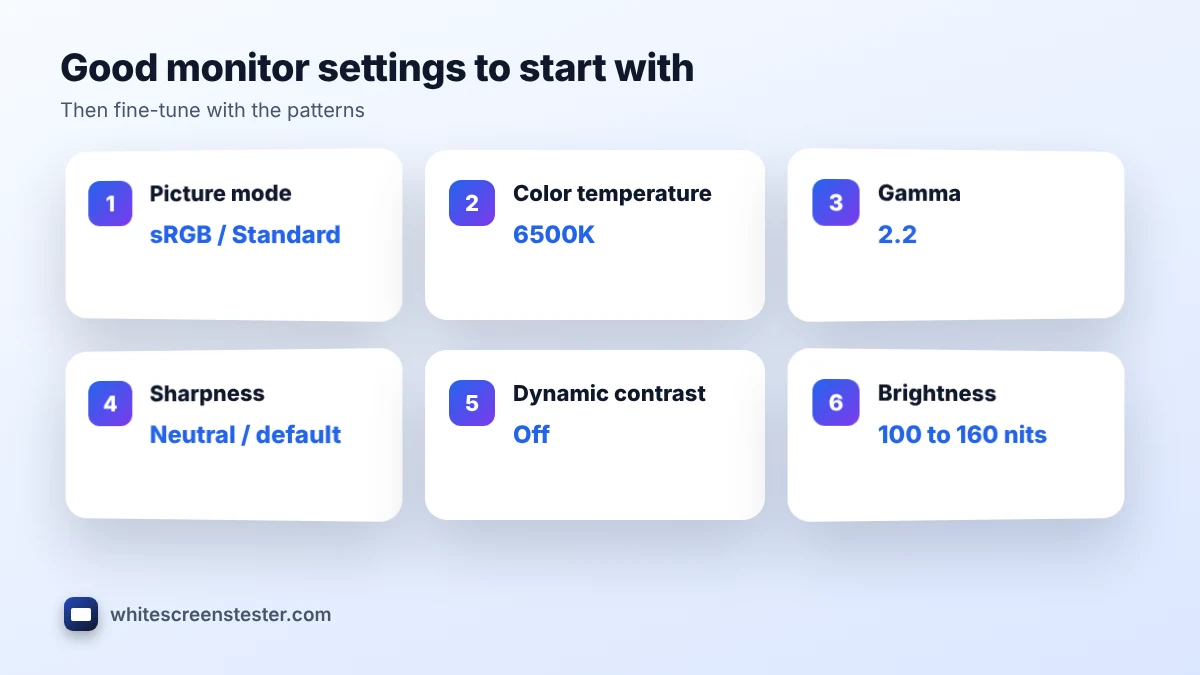
A good starting point is the sRGB or Standard mode, 6500K color temperature, gamma 2.2, sharpness at its neutral value and brightness around 100 to 160 nits for an office. Exact numbers differ by model.
Why does my monitor still look different from my phone?
Phones often use wider color ranges, adaptive color and higher brightness. Two screens rarely match perfectly unless both are measured and profiled.
Does monitor calibration help gaming?
Yes. Correct gamma and black level make dark scenes easier to read without washing out the picture. Check motion clarity too with our ghosting test.