
Stuck Pixel Fixer
Tick the warning box to enable the fixer.
This free stuck pixel fixer flashes rapidly changing colors over a small area of your screen to try to wake up a pixel that is stuck on one color. Drag the flashing square over the faulty pixel, choose a size and a timer, and let it run. It works in your browser on monitors, laptops, tablets and phones, with nothing to install.
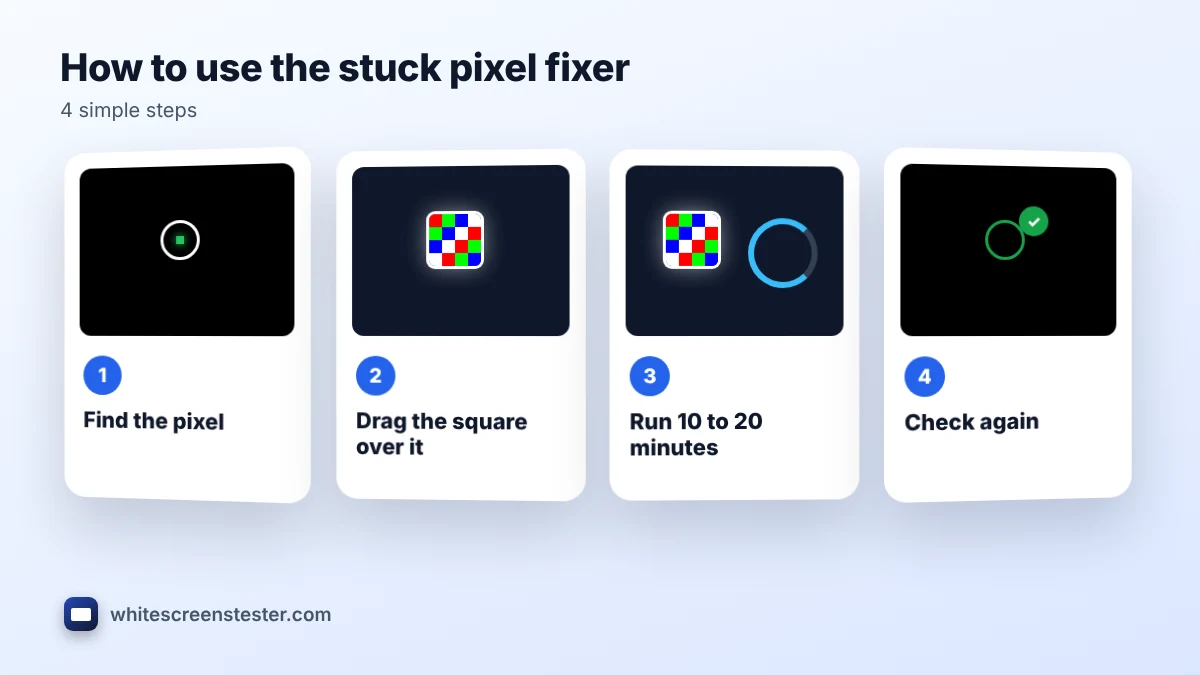
How to Use the Stuck Pixel Fixer
- Find the exact spot first with our dead pixel test. Note which colors the dot appears on.
- Read the photosensitivity warning and tick the box to enable the tool.
- Drag the square over the stuck pixel. Choose Small for a single pixel, or Medium or Large if you are not sure of the exact spot or have several.
- Pick a timer of 5, 10 or 20 minutes and click Start Fixing. Use Full Screen if the faulty area is large.
- Look away while it runs. When the timer ends, check the spot again on the test colors. Repeat a few times if the pixel is fading but not fully fixed.
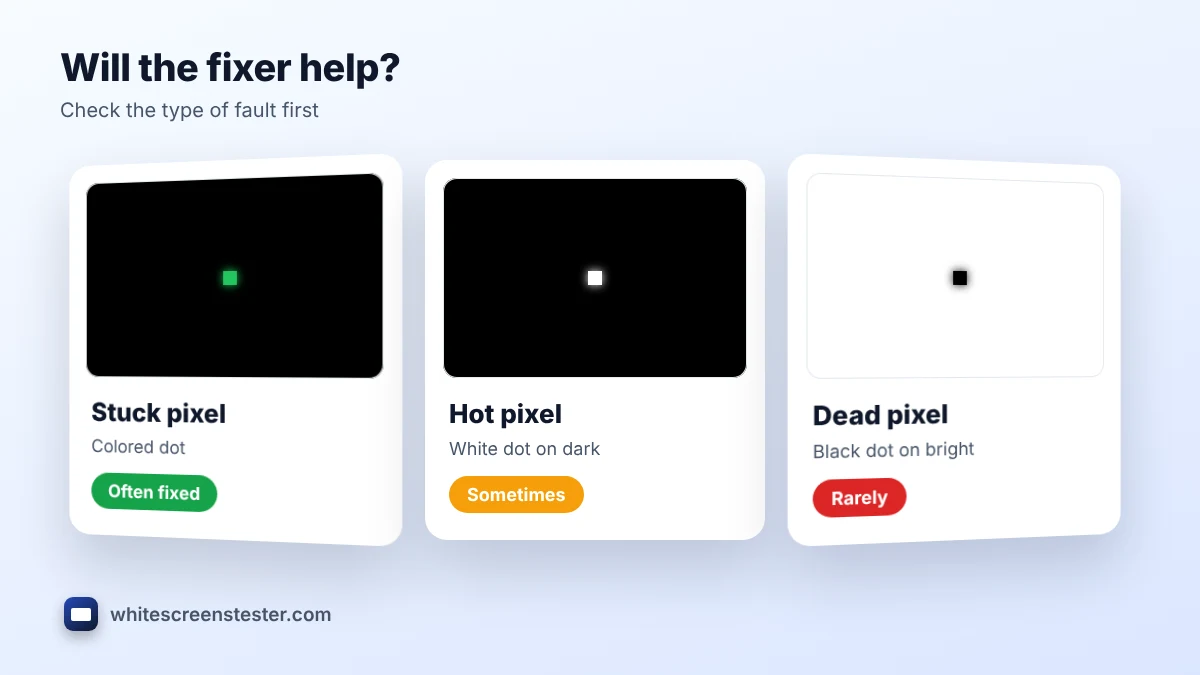
Stuck Pixel or Dead Pixel? Check Before You Start
| What you see | Fault | Will the fixer help? |
|---|---|---|
| A red, green, blue, cyan, magenta or yellow dot | Stuck pixel | Often, yes |
| A white dot on dark colors | Hot pixel (all subpixels stuck on) | Sometimes |
| A black dot on every bright color | Dead pixel | Rarely. No power reaches it |
| A soft, blurry spot larger than a pixel | Dust or debris | No. Clean the screen instead |
How a Stuck Pixel Fixer Works
Each pixel has red, green and blue subpixels controlled by liquid crystals (on LCD screens) or small light-emitting cells (on OLED screens). A stuck subpixel stays on because its crystal or circuit is not switching properly. Cycling it through fast color changes forces the subpixel to switch on and off thousands of times, which can free a sluggish crystal or reset a borderline transistor. It is the same idea used by older tools such as JScreenFix and UDPixel, running directly in your browser.
What Results to Expect From a Stuck Pixel Fixer
- Fixed in minutes: many stuck pixels recover within 5 to 20 minutes, especially if they appeared recently.
- Fading but not fixed: run it again for longer, or across several sessions over a day or two.
- No change after an hour: the pixel may be permanently stuck or dead. Check the manufacturer’s pixel policy in our guide to how many dead pixels are acceptable.
- It comes back: some pixels return after a reboot or when the panel warms up. Repeat the fix, and consider a warranty claim if it keeps happening.
For other methods, including the gentle pressure technique and what not to try, read how to fix a stuck pixel.
Using the Stuck Pixel Fixer on Phones, Tablets and TVs
- iPhone, Android and iPad: open the page in your browser, turn off auto-lock for the session, and drag the square with your finger.
- Laptops and monitors: close other heavy tabs so the colors flash smoothly.
- TVs: use the TV browser or mirror a laptop over HDMI, then use Full Screen if the exact spot is hard to target.
- OLED screens: keep sessions short and brightness moderate, because OLED pixels wear with use.
Safety Tips
- Do not use the tool if you have photosensitive epilepsy or are sensitive to flashing lights.
- Look away or cover the area with a sheet of paper while it runs.
- Do not press hard on the screen. Strong pressure can turn a stuck pixel into a dead area or crack an LCD.
- Stop if the screen gets unusually warm.
Frequently Asked Questions
Can this tool damage my screen?
No. It only shows changing colors, which screens are built to do. Avoid running any flashing content for many hours on an OLED.
How long should I run the stuck pixel fixer?
Start with 10 minutes. If the pixel improves, run another 10 to 20 minutes. Several shorter sessions often work better than one very long one.
Does it work as a dead pixel fixer?
It can sometimes revive a pixel that looks dead but is really a stuck dark subpixel. A truly dead pixel with no power cannot be fixed by software.
Will a stuck pixel go away on its own?
Sometimes, after hours of normal use with changing content. A stuck pixel fixer speeds that up.
Is it safe to use on a new screen inside the return window?
Yes, but if the pixel does not recover, it is usually faster to return or exchange the screen than to keep trying.