
Color Banding Test
Click the gradient to switch colors. Look for visible stripes in the smooth version.
This free color banding test fills your screen with smooth gradients in gray, red, green, blue and dark gray. A good display blends each ramp evenly from dark to light. A display with limited color depth, the wrong settings or heavy image processing shows visible stripes, steps or blotchy color shifts instead. Use it on a new monitor, TV, laptop or phone, or to see whether a setting, cable or graphics driver change made things better or worse.
What Is Color Banding?
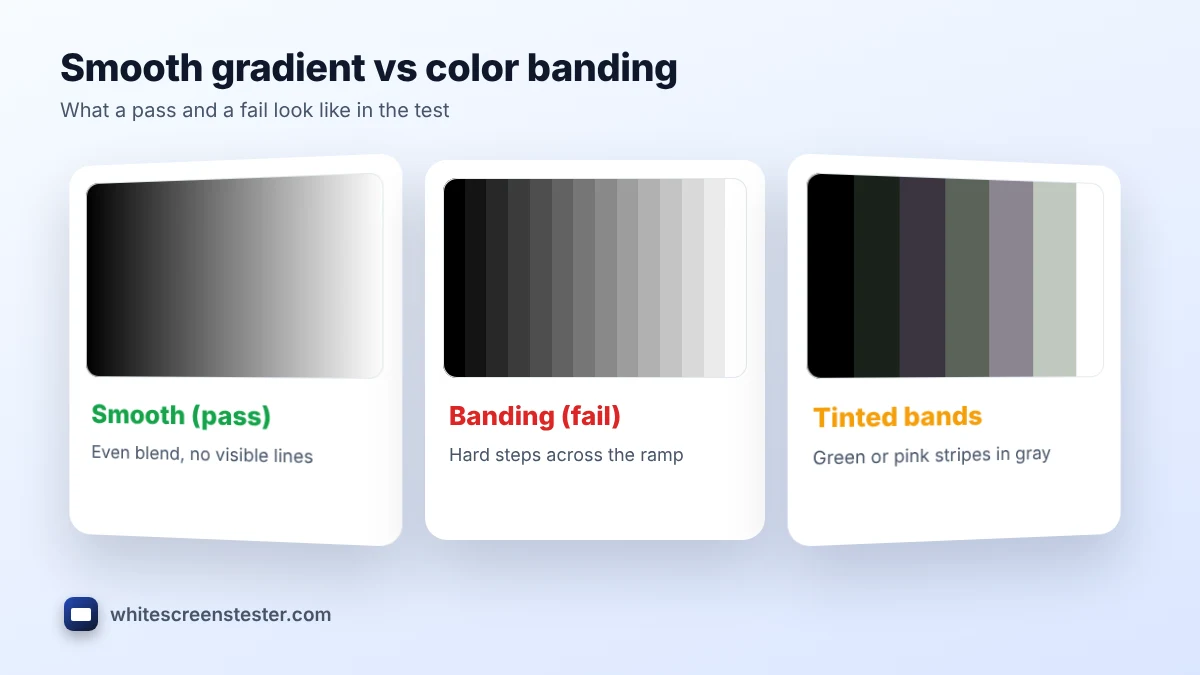
Color banding is when a gradient that should be smooth, such as a sunset sky or a dark wall in a game, breaks into separate stripes of color. It happens when the screen, or something before it in the chain, cannot show enough shades to make the transition look continuous. The eye notices it most in large, slow gradients and in dark scenes, which is why sky shots, fog and space scenes are where people first spot it.
How to Run the Color Banding Test
- Set your normal picture mode and turn off night mode, blue light filters and "vivid" or "dynamic" modes, which can add banding on their own.
- Set the browser zoom to 100% and click Full Screen.
- Look at the gray ramp from your normal seat. Then click through red, green, blue and dark gray. Banding is often worst in one channel or in the shadows.
- Tick Show 32 steps to see what obvious banding looks like, then switch it off and compare.
- Look for hard lines, tinted stripes (for example a green or pink band in the gray ramp) and blocky patches.
What Causes Color Banding?
| Cause | What happens | What to try |
|---|---|---|
| 6-bit panel | Only 64 shades per channel, often helped by dithering (FRC) | Expect some steps; avoid heavy processing |
| Limited RGB range mismatch | Shades are squeezed, so steps get bigger | Match range on PC and screen (Full or Limited) |
| Color profile or gamma tweaks | Software curves drop shades in 8-bit | Reset ICC profile and GPU color sliders |
| Low output bit depth or 4:2:0 chroma | GPU sends fewer shades or less color data | Use 8 or 10 bpc and RGB or 4:4:4 |
| Compressed video | The source itself has bands | Not a screen fault; test with this page instead |
8-Bit vs 10-Bit Color
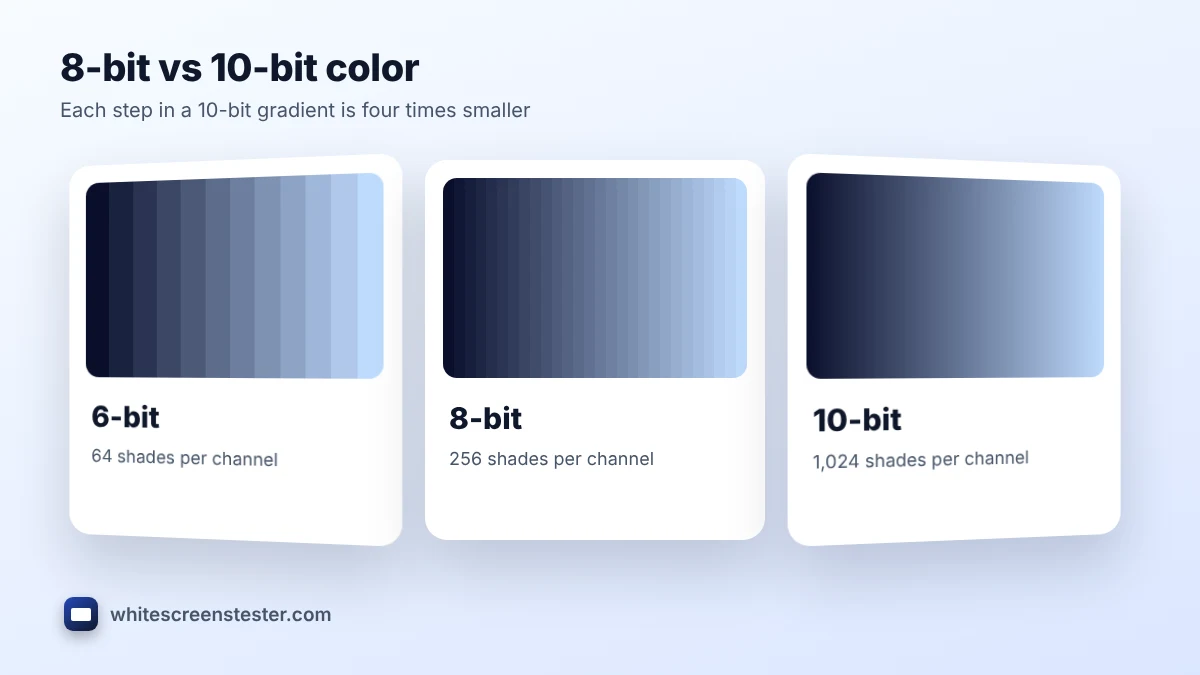
An 8-bit signal has 256 shades per channel, about 16.7 million colors in total. A 10-bit signal has 1,024 shades per channel, over a billion colors, so each step in a gradient is four times smaller. Most websites, games and streaming video are 8-bit, so a good 8-bit screen should pass this color banding test with only faint steps in the darkest part of the ramp. Many "10-bit" monitors are really 8-bit panels with FRC, which flickers between neighbouring shades to fake the extra steps; that works well in practice. True 10-bit matters most for HDR video, photo editing and grading.
How to Fix Color Banding on a Monitor
- On Windows, open your graphics control panel and set output to the highest bit depth the screen supports (8 or 10 bpc), RGB, and Full range.
- On a TV, make sure the HDMI black level or RGB range matches the source, and turn on any "smooth gradation" or "gradation" filter.
- Remove custom ICC profiles and reset brightness, contrast and gamma sliders in the GPU driver.
- Use a high-quality cable that supports your resolution and refresh rate, so the GPU does not drop to 4:2:0 chroma.
- Update the graphics driver and the monitor firmware.
If strong stripes still show in the color banding test after all of this, the panel itself is the limit.
OLED Vertical Banding
OLED TVs and phones can show faint vertical stripes in very dark gray, also called near-black banding. It comes from tiny differences between pixel columns and is most visible in dark, flat scenes. To look more closely, run the screen uniformity test at 5% and 10% gray. For image retention and other OLED faults, use the OLED burn-in test.
Related Tests
The color banding test checks gradients only. Crushed or lifted shadows are a separate issue, covered by the black level test. Check a new screen from start to finish with our new monitor checklist.
Frequently Asked Questions
Is a little banding normal?
Faint steps in the darkest part of a gradient are common, especially on 8-bit panels. Strong stripes across the middle of the gray ramp are not.
Why does banding change when I zoom the browser?
Zooming scales the gradient, so the browser may redraw it with different steps. Always run the color banding test at 100% zoom.
Can HDR cause banding?
Yes. HDR content with an 8-bit signal, or tone mapping on a screen with limited brightness, can create visible bands in skies and dark scenes.
Does the color banding test work on phones and TVs?
Yes. Open it in the browser on the device. On a TV, use the built-in browser or connect a laptop over HDMI.