
Dead Pixel Test
Press F for full screen, A for auto mode, Esc to exit
Color 1 of 8: White
This free dead pixel test fills your screen with eight solid colors, one at a time, so faulty pixels have nowhere to hide. It works in any browser on monitors, laptops, phones, tablets and TVs, with no app to install. Step through the colors by hand, or switch on auto mode and let the test cycle every three seconds while you watch.
How to Run the Dead Pixel Test
- Clean the screen first, so dust is not mistaken for a pixel fault.
- Click Start Full-Screen Test, or press F.
- Click, tap or press Space to move to the next color. Use the Previous and Next buttons to go back.
- Press A to turn on auto mode, which changes color every three seconds.
- On each color, scan the screen in sections from top left to bottom right. Press Esc to exit.
What Is a Dead Pixel?
Every pixel on an LCD or OLED screen is made of three subpixels: red, green and blue. A dead pixel is one where the subpixels no longer receive power, usually because the tiny transistor that controls them has failed. The pixel stays dark whatever the screen tries to show. On an OLED, a dead pixel simply never lights up.
What Does a Dead Pixel Look Like?
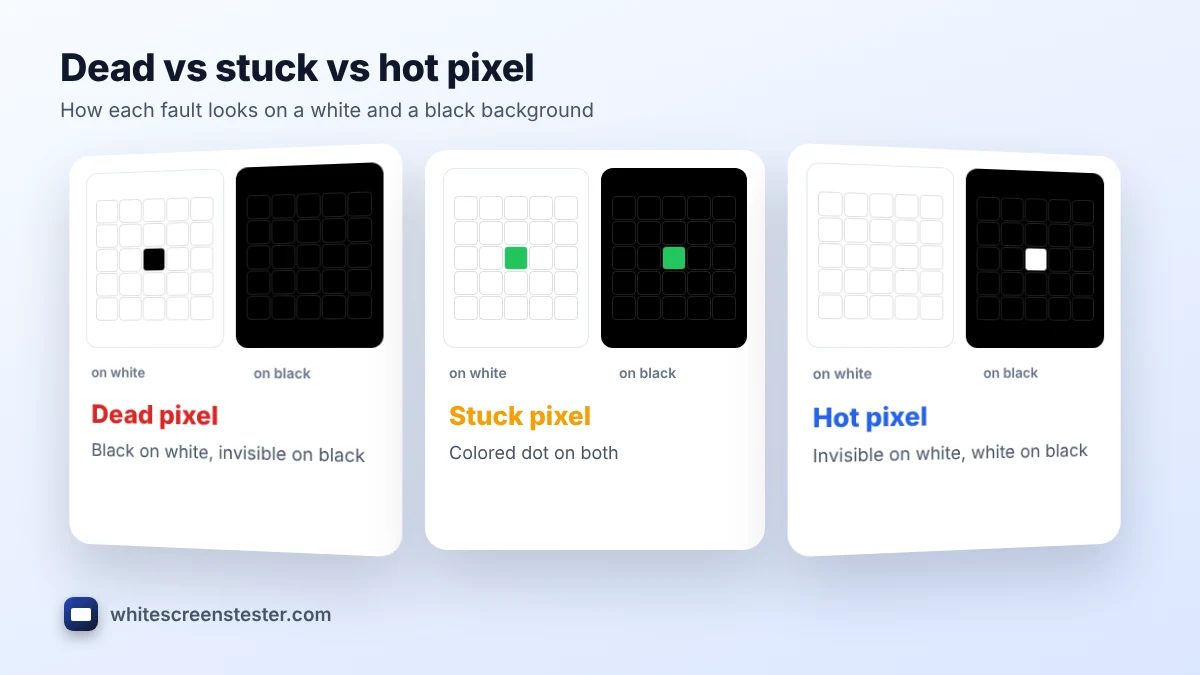
| Background color | Dead pixel | Stuck pixel | Hot pixel |
|---|---|---|---|
| White | Black dot | Colored dot | Invisible |
| Black | Invisible | Colored dot | White dot |
| Red, green or blue | Black dot | Dot of another color | White dot |
A dead pixel is a sharp, tiny square, the same size as every other pixel. If the spot is soft, blurry or larger than a pixel, it is more likely dust on the surface or a particle inside the panel.
Dead Pixel vs Stuck Pixel vs Hot Pixel
- Dead pixel: always off. Software cannot fix it.
- Stuck pixel: one or two subpixels are stuck on, so it shows a fixed red, green, blue, cyan, magenta or yellow dot. It can sometimes be revived with our stuck pixel fixer.
- Hot pixel: all subpixels are stuck on, so it shows as a white dot on dark colors.
Our guide on how to fix a stuck pixel explains what to try and what to avoid.
Why the Test Uses Eight Colors
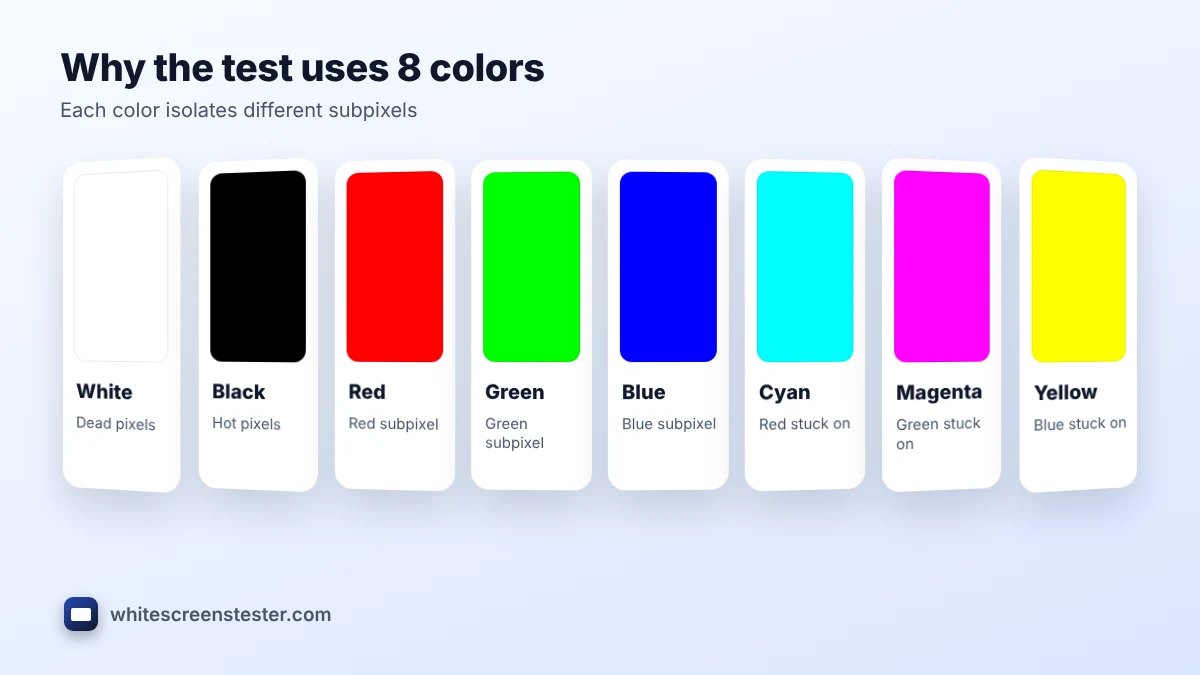
White and black catch dead and hot pixels. Red, green and blue isolate each subpixel, so a stuck subpixel shows clearly against them. Cyan, magenta and yellow light two subpixels at once, which helps you confirm which subpixel is at fault. Going through all eight takes less than a minute.
Running the Dead Pixel Test on Different Devices
- Monitors and laptops: sit at your normal distance, then lean in for a closer look at any suspicious spot. Use the native resolution.
- Phones (iPhone and Android) and iPads: open the page in the browser, rotate to landscape and tap through the colors. Turn off True Tone, Night Shift or Night Light first.
- TVs: open the page in the TV browser, or show it from a laptop over HDMI. Sit close for each color, because single pixels are tiny on a large 4K panel.
- OLED screens: dead pixels show as dark dots on white and gray. Do not leave any color on full screen for long periods.
Tips for an Accurate Dead Pixel Test
- Clean the screen gently with a dry microfiber cloth. Our screen cleaning guide explains how.
- Zoom in on a suspicious spot with your phone camera. A real pixel fault lines up with the pixel grid.
- Check again after the screen has warmed up for 10 minutes. Some stuck pixels only appear when the panel is cold or hot.
- Mark the position of each faulty pixel, so you can describe it to the seller or manufacturer.
When to Run a Dead Pixel Test
Test every new monitor, laptop, phone or TV on the day it arrives, while you can still return it. It is also worth checking a used device before you pay. Our new monitor checklist and our guide to checking a used phone screen cover the other tests to run.
Found a Dead Pixel? What to Do Next
Most manufacturers allow a small number of faulty pixels before they replace a screen, and the rules differ by brand. Read how many dead pixels are acceptable to understand pixel policies, then contact the retailer first if you are still inside the return window.
Frequently Asked Questions
Is this dead pixel test safe for my screen?
Yes. It only shows solid colors, the same as any image. Avoid leaving one color on an OLED for hours.
Can a dead pixel be fixed?
A truly dead pixel cannot be fixed with software. A stuck pixel sometimes recovers with a pixel-flashing tool.
Can dead pixels spread?
A single dead pixel does not usually spread. New faulty pixels appearing over time suggest a wider panel fault worth reporting under warranty.
Is a dead pixel test the same as a dead pixel checker?
Yes. Checker, tester and finder all describe the same idea: full-screen colors that make faulty pixels visible.
Why can’t I see the mouse pointer in full screen?
The pointer is hidden so it is not mistaken for a pixel fault. Move the mouse to bring it back.