
Screen Uniformity Test
This free screen uniformity test fills your display with flat gray at six brightness levels, from 5% to 75%, so you can see whether every part of the panel is equally bright and the same color. It is the quickest way to spot dark corners, tinted patches, clouding and the dirty screen effect on a new monitor, TV, laptop or phone. It runs in your browser in full screen, with an optional 3x3 grid for comparing zones.
How to Run a Screen Uniformity Test
- Turn off HDR, dynamic contrast, eye-care or night modes, and any picture mode you do not normally use.
- Set brightness to your everyday level and let the screen warm up for 10 to 15 minutes.
- Click Full Screen and start at 20% gray. View it from your normal seat.
- Compare the center with the corners and edges, then click through 5%, 10%, 30%, 50% and 75%.
- Turn on the 3x3 grid if you want to describe a problem zone to a seller, for example "the top-right zone is darker".
- Pan your eyes slowly across the screen. Fixed blotches that do not move with your head are uniformity faults.
What a Screen Uniformity Test Can Reveal
| What you see | Name | Best level to spot it |
|---|---|---|
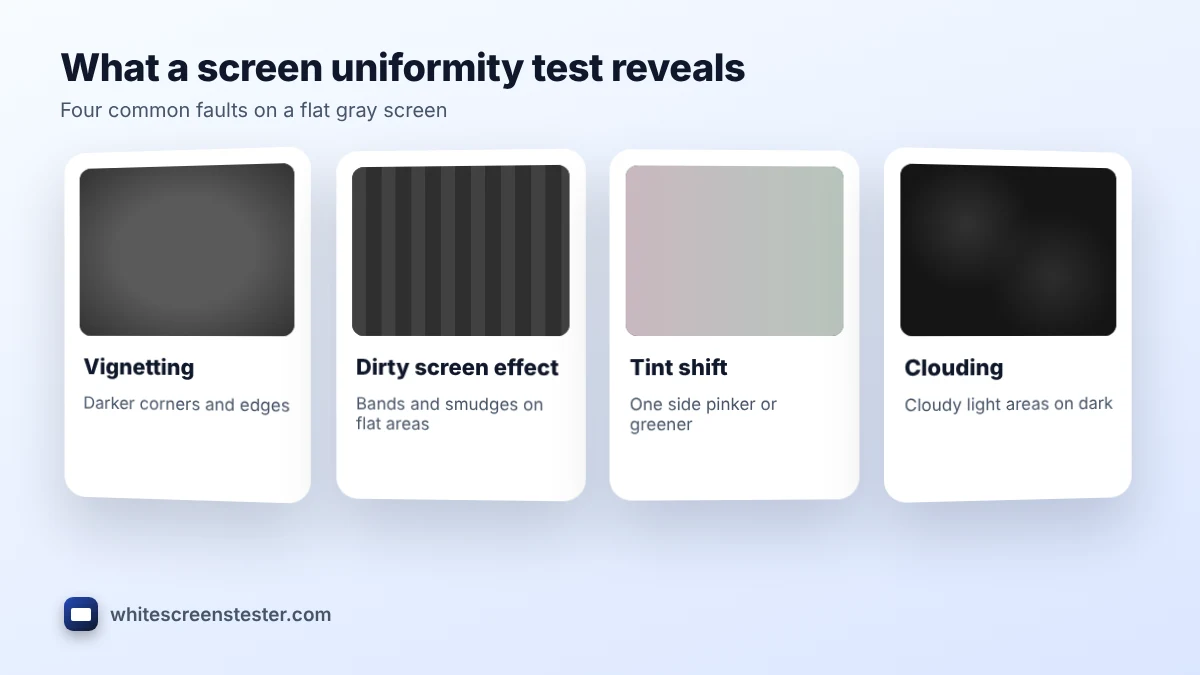
| Darker corners or edges | Vignetting | 30% to 50% |
| Vertical or horizontal bands, smudgy patches when content scrolls | Dirty screen effect (DSE) | 5% to 20% |
| One side looks pinker, greener or bluer | Tint shift (color uniformity) | 50% to 75% |
| Large cloudy light areas on a dark image | Clouding | 5% to 10% |
| Faint bands on OLED in dark scenes | Near-black banding | 5% |
Dirty Screen Effect Test
The dirty screen effect makes a display look as if it is behind a smudged window. It is most obvious during camera pans in sports or games, where a flat area such as grass, ice or sky moves across fixed blotches. To check for it, use the 10% and 20% levels in full screen, then move your head slightly while you look. On TVs, DSE often appears as faint vertical bands down the middle of the panel. A little is normal on large LCD and OLED TVs; strong bands that you notice in football or hockey broadcasts are worth reporting while you can still return the set.
Which Gray Level Should You Use?
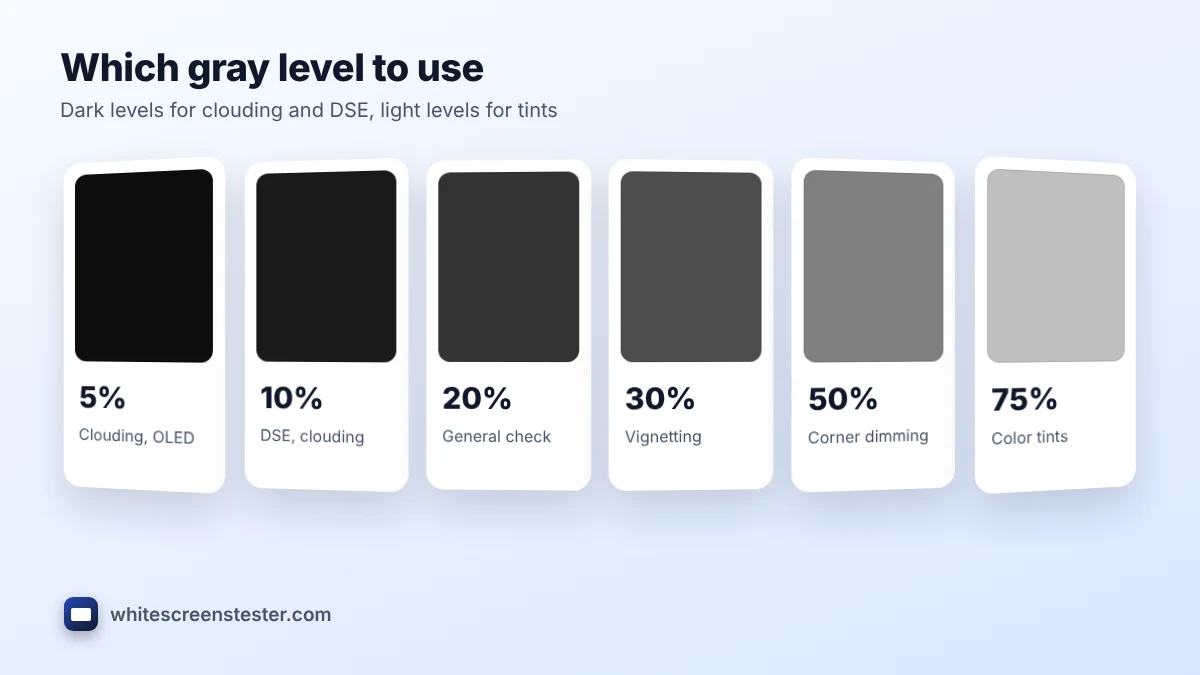
- 5% and 10%: near black. Shows clouding, OLED banding and DSE. Use a dark room.
- 20% and 30%: the most useful levels for general uniformity and vignetting.
- 50%: mid gray. Good for corner dimming and overall brightness differences.
- 75%: light gray. Best for color tints, because the eye judges color more easily on bright areas.
If you just want a plain gray background at one shade, our gray screen page is simpler. The screen uniformity test is built for comparing zones and levels.
OLED, IPS and VA Panels
Every panel type has its own weak spots. IPS LCDs often show corner glow and slight vignetting. VA panels can have darker edges and gamma shift when viewed off center, so sit straight in front of them. OLED screens have no backlight, so there is no clouding or bleed, but near-black uniformity can be uneven with faint banding or tinted patches at 5%. On iPhones and other OLED phones, set the brightness to about half, turn off True Tone or adaptive color, and run the screen uniformity test at 5% and 20%.
Is Some Unevenness Normal?
Yes. No consumer screen is perfectly even. A difference you only see in a screen uniformity test is usually acceptable. A patch you notice in everyday use, such as a dark corner in documents or bands during sports, is a fair reason for an exchange. Some monitors offer a uniformity compensation setting that evens out brightness at the cost of some contrast and peak brightness.
Related Tests
Light leaking at the edges on black is a different fault, covered by the backlight bleed test. Visible steps in gradients belong to the color banding test, and crushed shadow detail to the black level test. For a new display, follow our new monitor checklist.
Frequently Asked Questions
Why does this test use gray instead of white?
White pushes every pixel to full brightness, which hides small differences. Gray sits in the middle of the range, where uneven areas and tints stand out.
Do I need a dark room?
For 5% and 10%, yes. From 20% up, normal room light is fine and closer to how you use the screen.
Can poor uniformity be fixed?
Not by software in most cases, because it comes from the panel and backlight. A uniformity compensation mode can help a little. Severe cases are a warranty or return issue.
Will uniformity improve over time?
On some LCDs, pressure-related clouding eases slightly after a few weeks. Vignetting and tints usually stay the same.
Can I take a photo of the result?
Yes, but cameras exaggerate dark corners. Use normal photo mode, lock the exposure and shoot straight on from a couple of meters.