
Black Level & White Level Test
This free black level test shows two rows of squares: 20 that are only slightly lighter than pure black, and 20 that are only slightly darker than pure white. On a well-adjusted monitor, laptop or TV you can see almost all of them. If the darkest squares vanish into the background, the screen is crushing shadow detail; if the brightest ones vanish, it is clipping highlights. It takes under a minute and runs in your browser.
How to Use the Black Level Test
- Set the browser zoom to 100% and click Full Screen.
- Use the room lighting you normally work or watch in. A very dark room makes shadows easier to see than they will be in daily use.
- Look at the top row and count how many squares you can tell apart from the black background. Each one shows its value from 1 to 20.
- Look at the bottom row and count the squares you can separate from white, from 235 to 254.
- Use the table below to decide what to change, then run the test again.
Reading Your Results
| What you see | What it means | What to adjust |
|---|---|---|
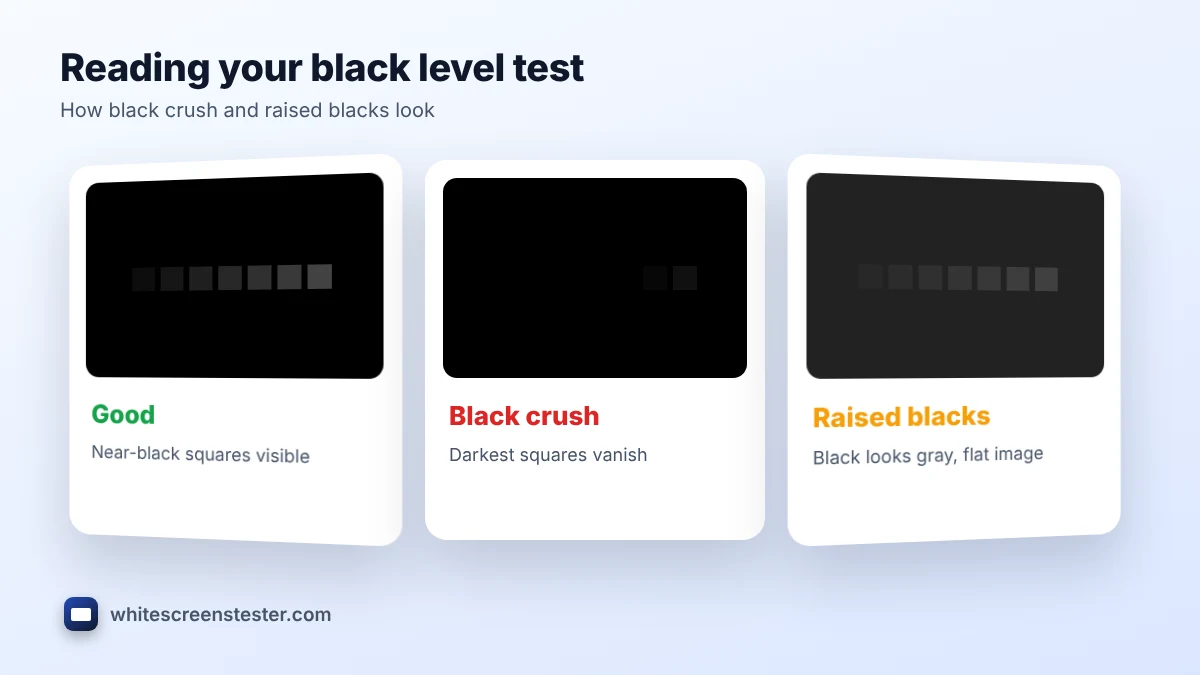
| Squares 1 to 4 or more are invisible | Black crush: shadow detail is lost | Raise brightness slightly, or check RGB range |
| All squares visible, but the background looks gray | Raised blacks: weak contrast | Lower brightness or black level |
| Squares 250 to 254 blend into white | White clipping: highlight detail is lost | Lower contrast a step at a time |
| Most squares in both rows are visible | Good black and white levels | Nothing to change |
What Is Black Level?
Black level is how dark the screen shows the darkest shade it is sent. Set too low, dark grays merge with black and you lose detail in night scenes, shadows and dark game areas. Set too high, black turns into a washed-out gray and the image looks flat. The goal is the darkest possible black while every near-black shade is still visible. White level is the same idea at the bright end: the brightest shades should stay separate instead of turning into one flat white.
Limited vs Full RGB Range
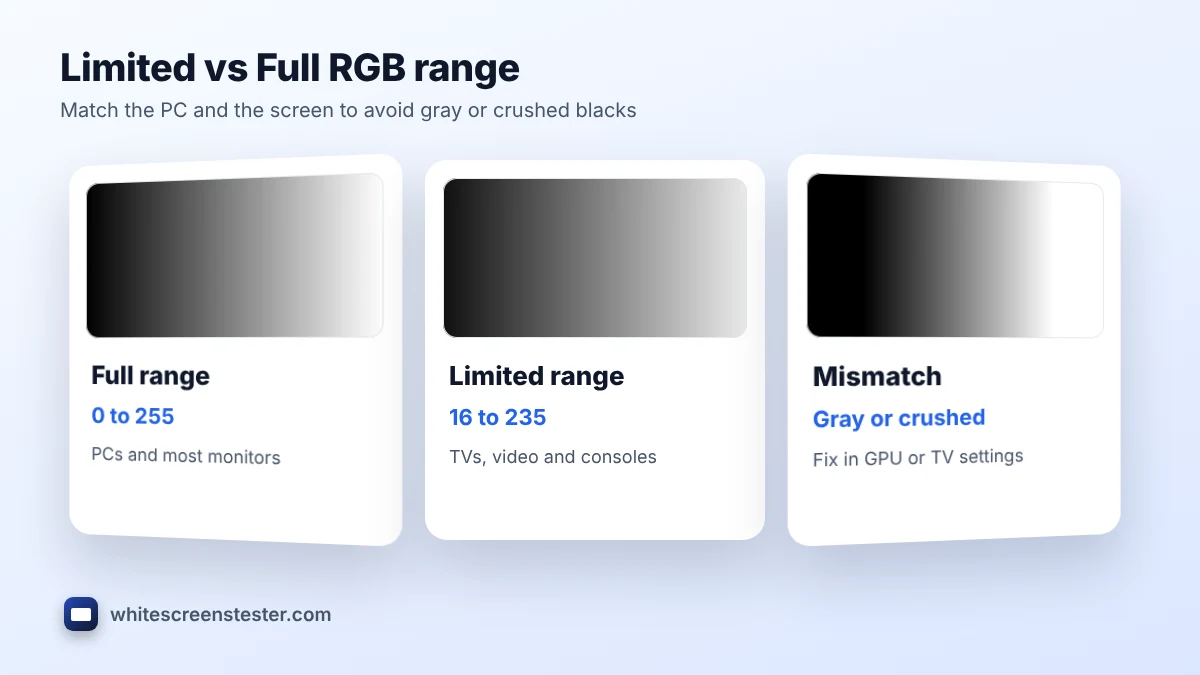
The most common cause of a failed black level test is an RGB range mismatch. PCs usually send Full range (0 to 255), while TVs and some monitors expect Limited range (16 to 235). If the PC sends Limited and the screen expects Full, blacks look gray. If the PC sends Full and the screen expects Limited, the first 16 shades are crushed to black and the top shades clip. Set both ends to the same value:
- Windows (NVIDIA): Control Panel, Change resolution, Output dynamic range, Full.
- Windows (AMD or Intel): Display settings in the driver app, Pixel format or Quantization range, Full RGB.
- TVs: set HDMI Black Level, RGB Range or HDMI Dynamic Range to match the source. On many TVs "Low" means Limited and "Normal" or "High" means Full.
- Consoles: PlayStation and Xbox let you choose RGB range in video output settings. Use Automatic unless you see a mismatch.
Brightness, Contrast and Gamma
On most screens the Brightness control sets the black level and the Contrast control sets the white level. In the black level test, adjust brightness until square 3 or 4 is just visible against black, then adjust contrast until square 251 or 252 is just visible against white. If you still lose shadows, look for a gamma, black equalizer or shadow boost setting; gaming monitors often have one. Keep it low, because high values lift blacks and reduce contrast. Change one setting at a time and recheck both rows after each step.
OLED and HDR Screens
OLED pixels switch fully off, so black itself is perfect, but near-black shades can still be crushed by aggressive picture modes. Run the black level test in the picture mode you watch in. In HDR, brightness and tone mapping are controlled by the content and the screen, so use the HDR calibration app on Windows or your console for HDR, and this page for normal SDR use.
Related Tests
The black level test measures shade detail. For a plain black background to check bleed, glow or contrast by eye, use the black screen. Light leaking around the edges is covered by the backlight bleed test, and steps in gradients by the color banding test.
Frequently Asked Questions
Why can I not see the first few squares in the black level test?
Squares 1 to 3 are extremely close to black. On many screens, and in bright rooms, they are hard to see. If you miss more than five, raise brightness or check RGB range.
Does the black level test work on phones?
Yes. Turn off auto-brightness and night mode first, then set brightness to your normal level.
Should I fix black crush with gamma or brightness?
Start with brightness and RGB range. Use gamma or shadow boost only if those do not solve it.
Is a lower black level always better?
Only while shadow detail stays visible. Deeper black with crushed shadows hides detail in films and games.