
Touch Screen Test
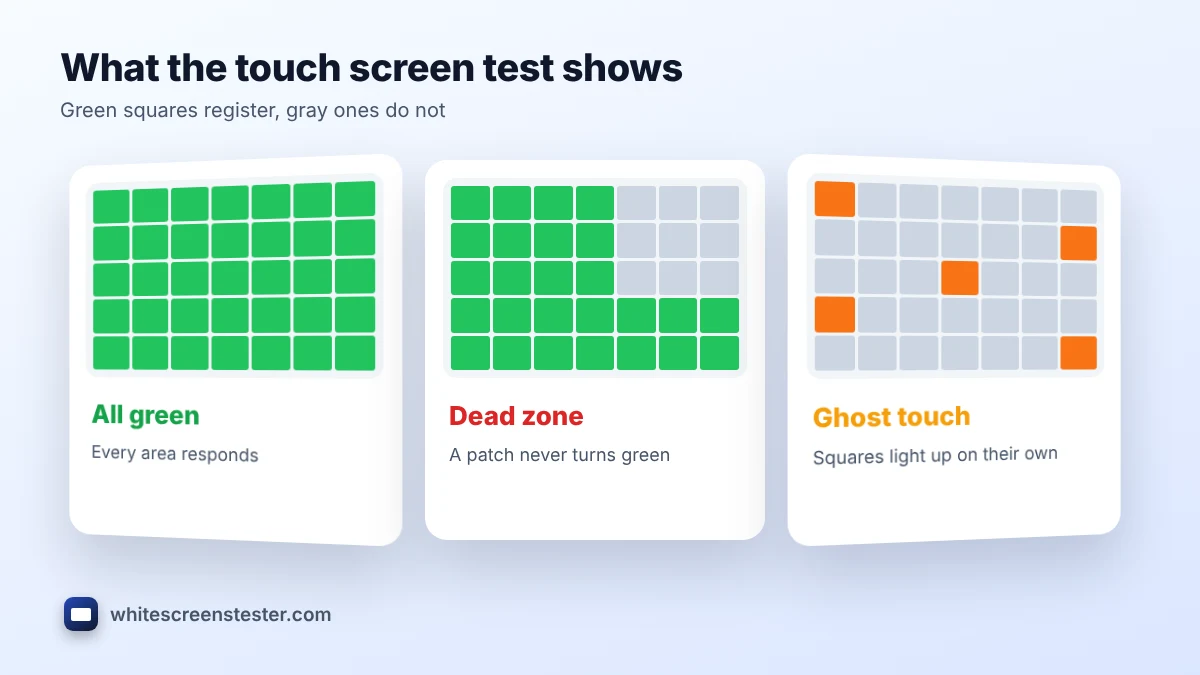
Drag your finger over every square. Squares you touch turn green. Gray squares that won’t change point to a dead zone.
This free touch screen test checks whether every part of your phone, tablet, Chromebook or touchscreen laptop responds to your finger. Drag across the grid and each square turns green when a touch registers; any square that stays gray marks a possible dead zone. The tool also counts how many fingers the screen detects at once, so you can check multi-touch too. It runs online in your browser, with no app to install.
How to Run the Touch Screen Test
- Remove a thick case edge, and smooth out any bubbles in the screen protector that might block touches near the edges.
- Tap Full Screen so the grid covers the whole display, including the corners.
- Drag one finger slowly in rows from left to right until every square is green. Watch the Covered percentage climb to 100%.
- Pay extra attention to the edges, corners and the area around the keyboard, where faults are most common.
- Place two, three, four and then five fingers on the screen together. Fingers now shows how many are detected.
- Press Clear and run the touch screen test once more to confirm any problem area.
Reading the Results
| What you see | What it means | What to try |
|---|---|---|
| A strip or patch of squares stays gray | Dead zone in the digitizer | Remove the protector and retest, then restart |
| Squares turn green where you did not touch | Ghost touch | Clean and dry the screen, unplug the charger |
| Lines break up or skip when you drag | Weak or intermittent response | Update the system and retest slowly |
| Fewer fingers detected than expected | Limited multi-touch | Check the device specs before assuming a fault |
Multi-Touch Test
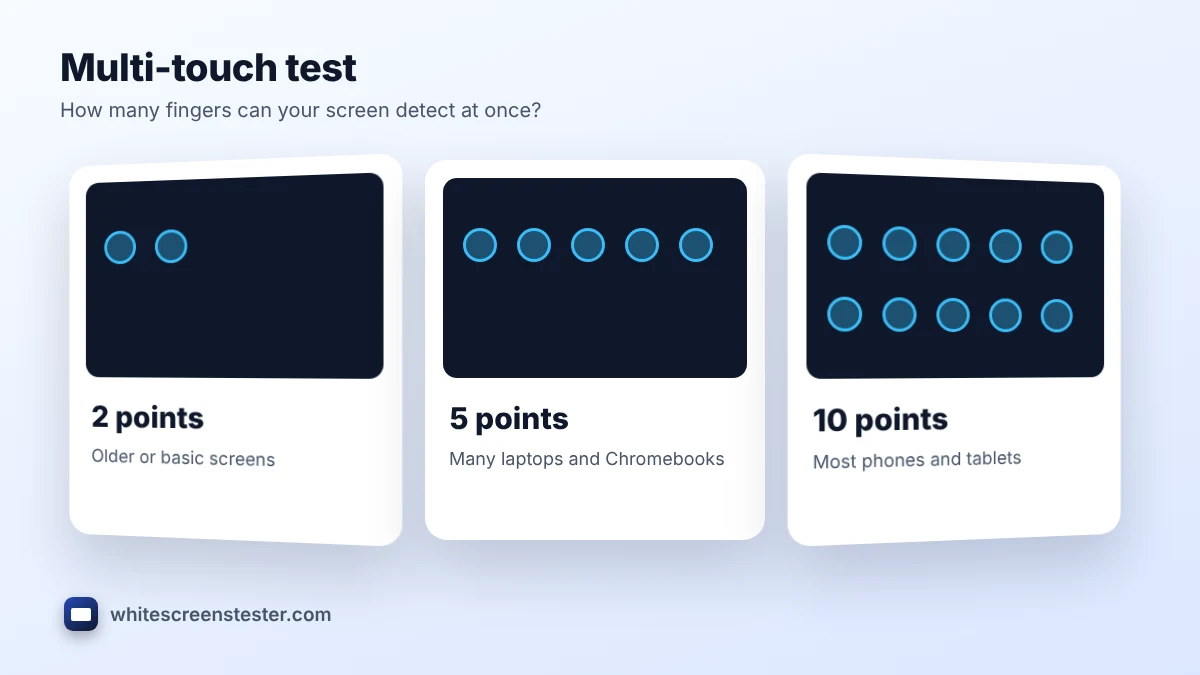
Most modern phones and tablets detect 10 fingers at once, while many touchscreen laptops and Chromebooks detect 5 or 10. Older or low-cost screens may only see 2. During the touch screen test, spread your fingers across the screen; if the count stops rising, that is the limit of your panel. A count that jumps up and down while your fingers stay still points to a sensor or grounding problem.
Ghost Touch and Dead Zones
Ghost touch is when the screen reacts to touches you did not make, such as apps opening or text being typed on its own. Common causes are moisture or dirt on the glass, a cheap charger adding electrical noise, a lifted screen protector, or pressure from a tight case. A dead zone is the opposite: an area that does not respond. It is often caused by a crack in the digitizer, a loose display connector after a drop or repair, or a screen protector that is too thick at the edges. The touch screen test makes both easy to see, because unwanted squares light up or a patch refuses to turn green.
Built-in Touch Tests on Android and iPhone
- Android: some phones open a hidden test menu when you dial *#0*# (many Samsung models) or *#*#2664#*#* (some other brands). Codes vary by maker, and many phones ignore them.
- Android developer options: turn on Show taps and Pointer location to see each touch drawn on screen.
- iPhone and iPad: there is no public touch test menu. Use this browser test, or the drawing area in Notes, to check coverage.
The browser touch screen test works the same on every device, which makes it easy to compare a phone with a tablet or laptop.
How to Fix an Unresponsive Touch Screen
- Clean the screen with a slightly damp microfiber cloth and dry it fully.
- Remove the screen protector and case, then test again.
- Restart the device, and install system updates.
- On Windows, open Device Manager, find HID-compliant touch screen, and disable then enable it. Run the touch calibration in Control Panel, Tablet PC Settings.
- Test with the charger unplugged to rule out electrical noise.
- If a dead zone remains after all of this, the digitizer likely needs repair.
Related Tests
A touch fault is separate from a display fault. To check the picture itself, use the dead pixel test for faulty pixels and the screen uniformity test for uneven brightness. For a used phone or tablet, run both along with this test before you buy.
Frequently Asked Questions
Does this touch screen test work on iPhone and Android?
Yes. It works in Safari, Chrome and other mobile browsers, and on Windows and Chromebook touchscreens.
Why does the edge of my screen not respond?
Thick case edges and screen protectors are the most common cause. Remove them and retest. If the edge still fails, the digitizer may be damaged.
Can a software update fix touch problems?
Sometimes. Updates can fix touch driver and palm rejection bugs, but they cannot repair a cracked or disconnected digitizer.
Is it safe to use?
Yes. The page only reads touch positions in your browser and does not store or send them anywhere.