
Ghosting Test
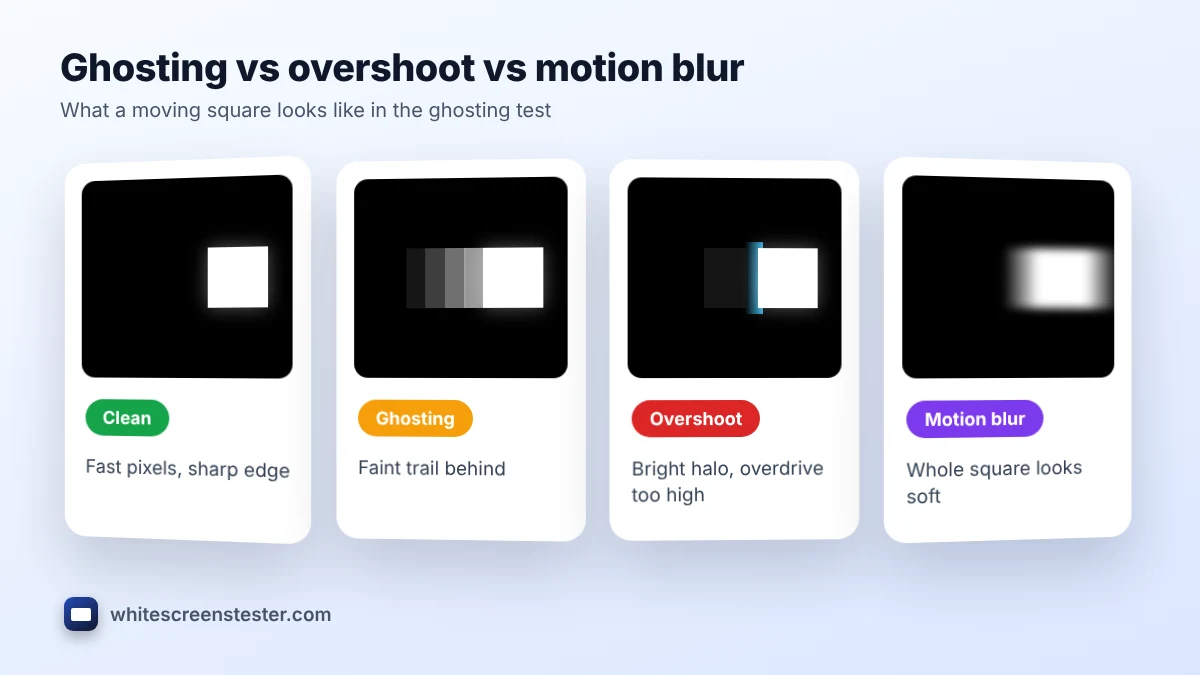
Follow one square with your eyes. A clean edge means fast pixels. A trail behind the square is ghosting. A bright or colored halo is overshoot.
This free ghosting test moves four squares across your screen at a steady speed so you can see how quickly your pixels change color. If a square leaves a faint trail, your display has ghosting. If it leaves a bright or colored halo, the overdrive setting is too strong. The test runs in your browser on any monitor, laptop, TV or phone.
How to Run the Ghosting Test
- Close other heavy tabs and apps so the animation stays smooth. The frame rate shown under the tool should match your refresh rate. If you are not sure what that is, check it with our refresh rate test.
- Click Full screen and sit at your normal viewing distance.
- Start at Medium speed. Pick one square and follow it with your eyes as it crosses the screen. Do not stare at one spot.
- Look at the back edge of the square. Then repeat for each of the four lanes, because every lane uses a different color change.
- Try Fast and Very fast. Trails that only appear at the highest speed are normal on most screens.
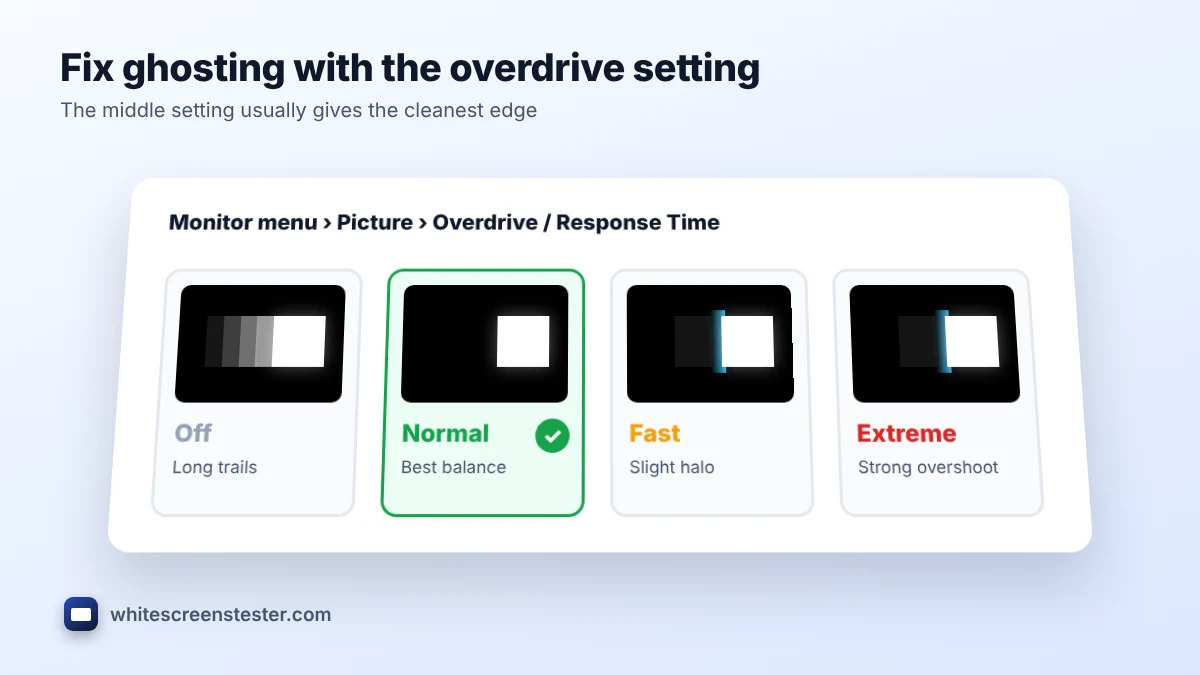
- Open your monitor menu, change the overdrive or response time setting, and run the ghosting test again. Keep the setting that gives the cleanest edge.
What the Ghosting Test Shows
| What you see | What it is called | Usual cause |
|---|---|---|
| A faint, darker or lighter trail behind the square | Ghosting | Slow pixel response time |
| A bright, white or colored halo behind the square | Inverse ghosting (overshoot, coronas) | Overdrive set too high |
| A long dark smear, mostly in the dark gray lane | Black smearing | Slow dark transitions, common on VA panels |
| The whole square looks soft, with no separate trail | Motion blur | Low refresh rate and sample-and-hold display |
| The square jumps or stutters | Dropped frames | Browser, graphics driver or power saving |
Why Each Lane Is Different
A pixel does not take the same time for every color change. Going from black to white is often fast, while going from black to dark gray can be several times slower. That is why a monitor can look sharp in a bright game and smeary in a dark film. It is also why this ghosting test uses four lanes instead of one.
- White on black: the largest change. Good for spotting overshoot halos.
- Black on gray: a mid-tone change, similar to text and interface elements moving over a web page.
- Dark gray on black: the hardest case for VA panels. A long shadow here is black smearing.
- Black on white: close to scrolling text. Trails here make reading while scrolling tiring.
Ghosting vs Motion Blur vs Overshoot
These three effects are often mixed up, but the fix for each one is different.
- Ghosting comes from the panel. The pixels are too slow, so part of the old image is still visible in the next frame. A stronger overdrive setting usually helps.
- Overshoot is the opposite. The monitor pushes the pixels too hard and they go past the target color for a moment. A weaker overdrive setting fixes it.
- Motion blur comes from how your eyes track a picture that is held still for a full frame. Every LCD and OLED has some. A higher refresh rate, or a backlight strobing mode, reduces it.
How to Reduce Ghosting on a Monitor
- Set the correct refresh rate. A 144 Hz monitor running at 60 Hz shows more blur and its overdrive may be tuned badly.
- Adjust overdrive. The setting may be called Overdrive, Response Time, Trace Free, AMA or OD. The middle option is usually the best balance.
- Check it again with variable refresh rate on. With G-Sync or FreeSync, the best overdrive level can change when the frame rate drops.
- Use a good cable. A loose or low-quality cable can limit the refresh rate. Use the DisplayPort or HDMI cable that came with the monitor.
- Let the screen warm up. LCD pixels respond more slowly when the panel is cold, so test after 10 to 15 minutes of use.
- Turn off extra processing on TVs. Use Game mode to cut noise reduction and motion smoothing.
If the trails remain at every overdrive level, the panel is simply slow. Some ghosting is normal on budget VA and older IPS monitors, and it cannot be fixed with software.
Typical Ghosting Test Results by Panel Type
| Panel | Typical result |
|---|---|
| OLED | Almost no trails. Only sample-and-hold motion blur remains. |
| Fast IPS | Short, faint trails. Overshoot appears at the highest overdrive level. |
| VA | Clean bright lanes, but visible smearing in the dark gray lane. |
| TN | Fast response with little trailing, but weaker colors and viewing angles. |
| Older or budget LCD | Clear trails in all lanes, even at medium speed. |
Is This Ghosting Test Accurate?
This is a visual ghosting test, not a lab measurement. It shows you what your eyes will notice in real use, which is what matters when you choose an overdrive setting or compare two monitors side by side. It cannot give you a response time in milliseconds. That needs a light sensor or a pursuit camera. Results also depend on your browser keeping a steady frame rate, so watch the frame rate counter while you test.
Frequently Asked Questions
What is monitor ghosting?
It is a faint copy of a moving object that follows behind it. It happens when pixels cannot change color fast enough to keep up with the picture.
Is ghosting the same as burn-in?
No. Ghosting only appears while something is moving and disappears when it stops. Burn-in is a permanent mark that stays on the screen. If you suspect that, read our OLED burn-in guide.
Can I use this ghosting test on a phone or TV?
Yes. Open this page in the browser on the device and tap Full screen. On a TV, switch to Game mode first so the picture processing does not add its own trails.
Why does the ghosting test show trails in one lane only?
Each lane uses a different color change, and your panel is slower at some of them. Smearing only in the dark gray lane is typical of VA panels.
Does ghosting mean my monitor is faulty?
Usually not. It is a limit of the panel type, not a defect. If you are checking a new screen, also run a dead pixel test and a screen uniformity test while you are still inside the return window.