
You found a dead pixel on a new monitor, laptop or phone. The next question is whether the manufacturer will replace it. The honest answer is: it depends on how many faulty pixels there are, what type they are, where they are, and the manufacturer’s own pixel policy. This guide explains how those policies work so you know where you stand before you contact support.
Dead, Stuck and Hot Pixels: Know What You Have
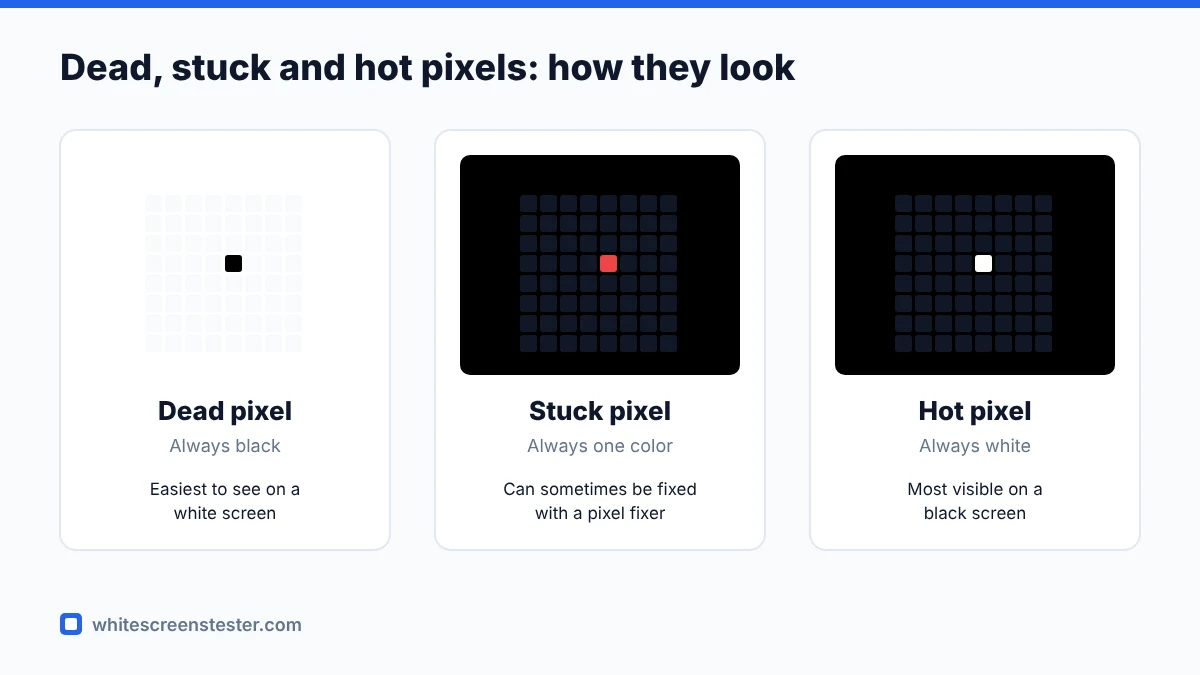
Pixel policies treat different faults differently, so first identify yours with a dead pixel test:
- Dead pixel: always black or dark. Most visible on a white screen.
- Stuck pixel or subpixel: always one colour, such as red, green or blue. Visible on a black or contrasting colour screen.
- Hot or bright pixel: always white. Most visible on a black screen.
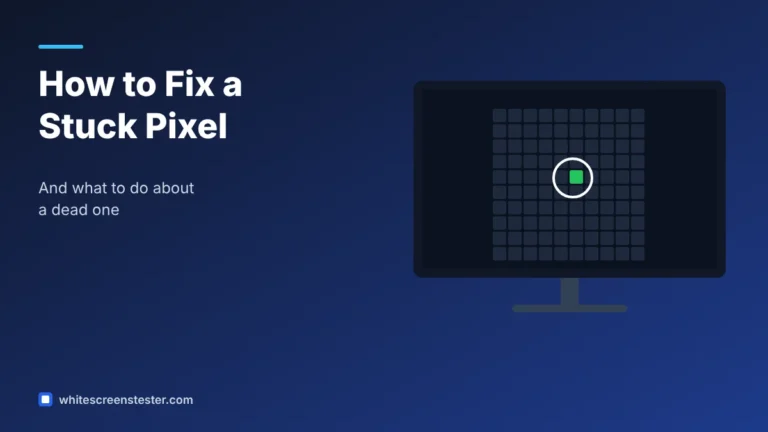
Stuck pixels sometimes recover. Try our stuck pixel fixer for 10 to 20 minutes before you file a claim. Truly dead pixels do not come back.
The Standard Behind Most Pixel Policies
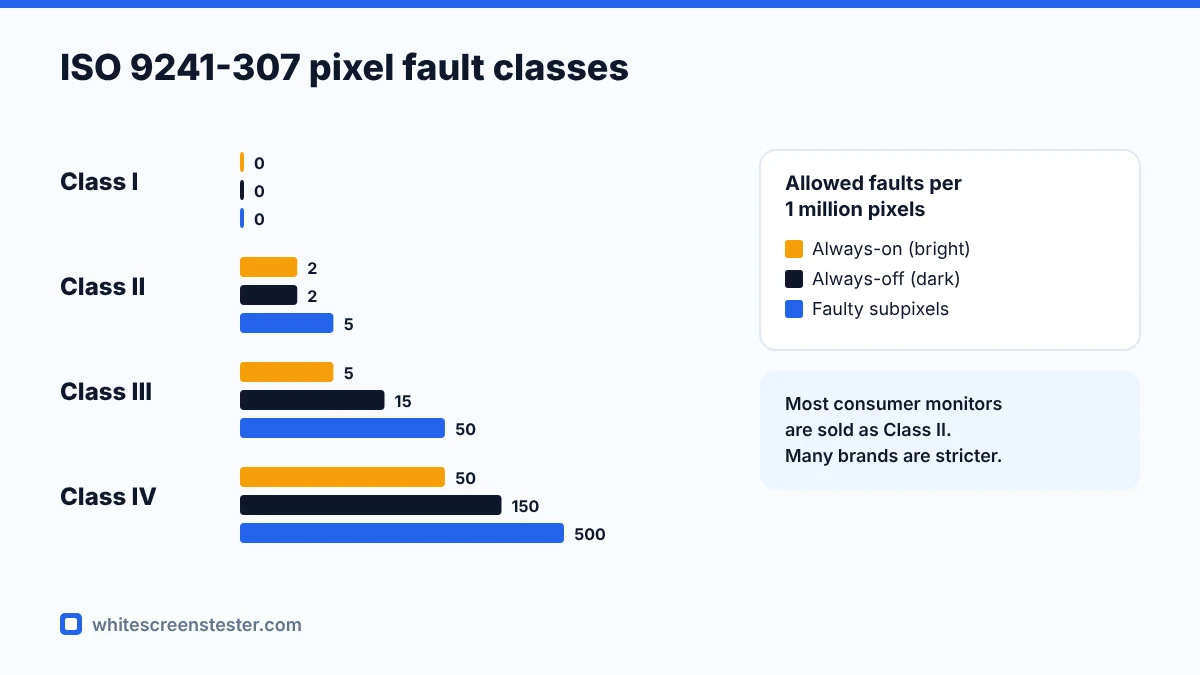
Many monitor makers base their rules on the international standard ISO 9241-307 (which replaced the older ISO 13406-2). It sorts panels into classes by how many faulty pixels are allowed per million pixels:
| ISO 9241-307 class | Always-on (bright) pixels | Always-off (dark) pixels | Faulty subpixels |
|---|---|---|---|
| Class I | 0 | 0 | 0 |
| Class II | 2 | 2 | 5 |
| Class III | 5 | 15 | 50 |
| Class IV | 50 | 150 | 500 |
Most consumer monitors are sold as Class II. A 1920×1080 screen has about 2.07 million pixels, so in theory a Class II panel of that size could have around four bright and four dark pixels and still be “within specification”. A 4K screen has about 8.3 million pixels, so the allowance is larger still.
How Manufacturers Actually Apply It
In practice, each brand publishes its own policy, and many are stricter than the standard. Common patterns include:
- Zero bright-pixel policies: some brands replace a monitor for a single always-on white pixel, because bright pixels are more distracting than dark ones.
- Location rules: faults in the central area of the screen often count more than faults near the edges.
- Clustering rules: two or more faulty pixels close together may qualify even if the total count is low.
- Premium lines: higher-end or professional models sometimes carry a zero dead pixel guarantee.
- Phones and laptops: policies are often less clearly published. Contact support with photos.
Policies change and differ by country, so always read the current pixel policy on the manufacturer’s support site for your exact model.
The Return Window Is Your Best Option
A retailer’s return window is often more generous than the manufacturer’s pixel policy. Many shops will accept a return for any reason within a set number of days. That is why it pays to test every new screen on the day it arrives. Our white screen tester and colour cycle test take only a few minutes.
How to Make a Pixel Claim
- Note the exact location of each faulty pixel. Use full-screen colours to confirm which kind it is.
- Take clear, close-up photos with the faulty pixel on a white or black screen. Include a wider shot so support can see where it is on the panel.
- Find the serial number and proof of purchase.
- Check the manufacturer’s pixel policy for your model and quote it in your request.
- Contact the retailer first if you are inside the return window. Otherwise open a warranty case with the manufacturer.
Quick Answers
Is one dead pixel acceptable?
Under most Class II policies, yes, one dark pixel is within specification. Some brands will still replace a screen for one bright pixel, and retailers may accept a return within their window.
Can dead pixels spread?
A single dead pixel does not usually spread. If you see new dead pixels appearing over days or weeks, that suggests a wider panel fault and is worth reporting.
Can I fix a dead pixel myself?
A truly dead pixel cannot be fixed with software. A stuck pixel can sometimes be revived. See our guide on how to fix a stuck pixel.