
Refresh Rate Test
Keep this tab in the foreground and don’t move the mouse for 5 seconds for the most accurate reading.
This free refresh rate test measures how many times per second your screen actually updates, in hertz (Hz), straight from your browser. It also shows the frame time in milliseconds and counts dropped frames, so you can see whether a 60, 120, 144, 165 or 240 Hz monitor, gaming laptop, TV or phone is really running at the speed you paid for. The reading settles after a few seconds.
How to Use the Refresh Rate Test
- Close heavy tabs and apps so the browser can draw every frame.
- Keep this page in the foreground and wait about five seconds for the number to settle.
- Compare the result with the advertised refresh rate of your screen. A reading within 1 Hz is normal, for example 143.9 for a 144 Hz monitor.
- With two monitors, drag the browser window to the screen you want to check and press Reset.
- If dropped frames keep rising, the browser or computer is struggling to keep up, not the screen.
What Is Refresh Rate?
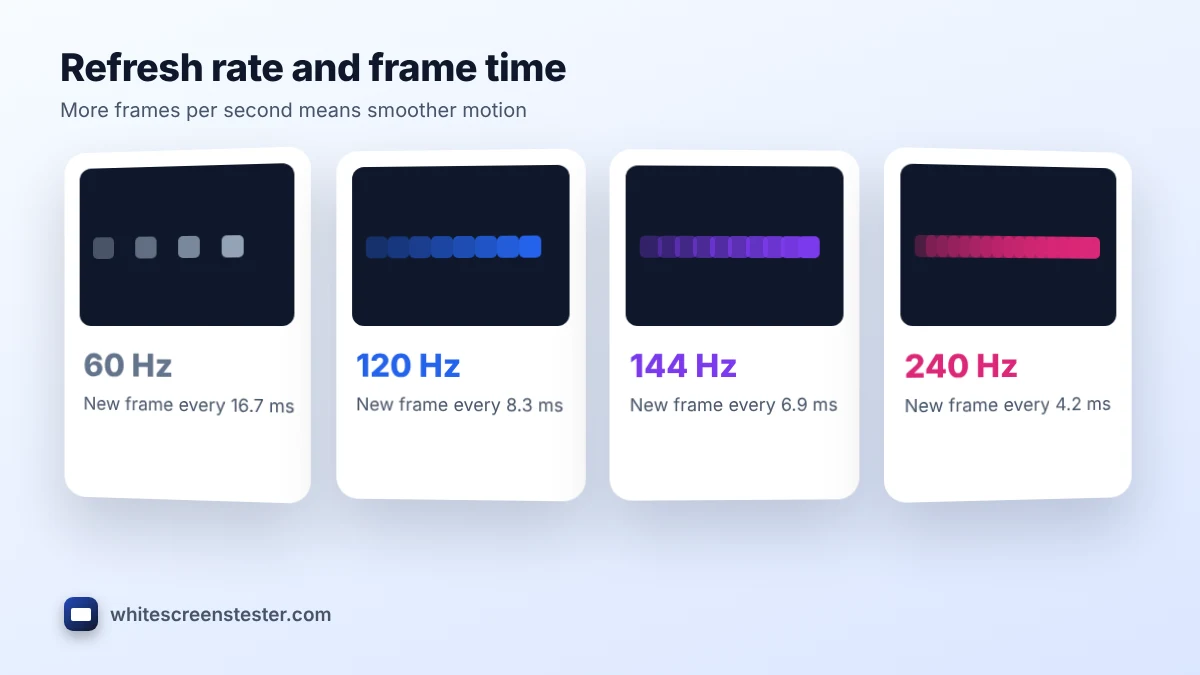
Refresh rate is how many times per second the display draws a new image. A 60 Hz screen updates every 16.7 ms, a 144 Hz screen every 6.9 ms and a 240 Hz screen every 4.2 ms. Higher rates make scrolling, mouse movement and fast games look smoother and feel more responsive. Refresh rate is not the same as frame rate (FPS): FPS is how many frames your computer or console produces, while Hz is how many the screen can show.
| Refresh rate | Frame time | Typical use |
|---|---|---|
| 60 Hz | 16.7 ms | Office work, most TVs, budget laptops |
| 120 Hz | 8.3 ms | Phones, tablets, consoles, newer TVs |
| 144 to 165 Hz | 6.9 to 6.1 ms | Gaming monitors and laptops |
| 240 Hz and up | 4.2 ms or less | Competitive esports |
Why the Refresh Rate Test Shows a Lower Number
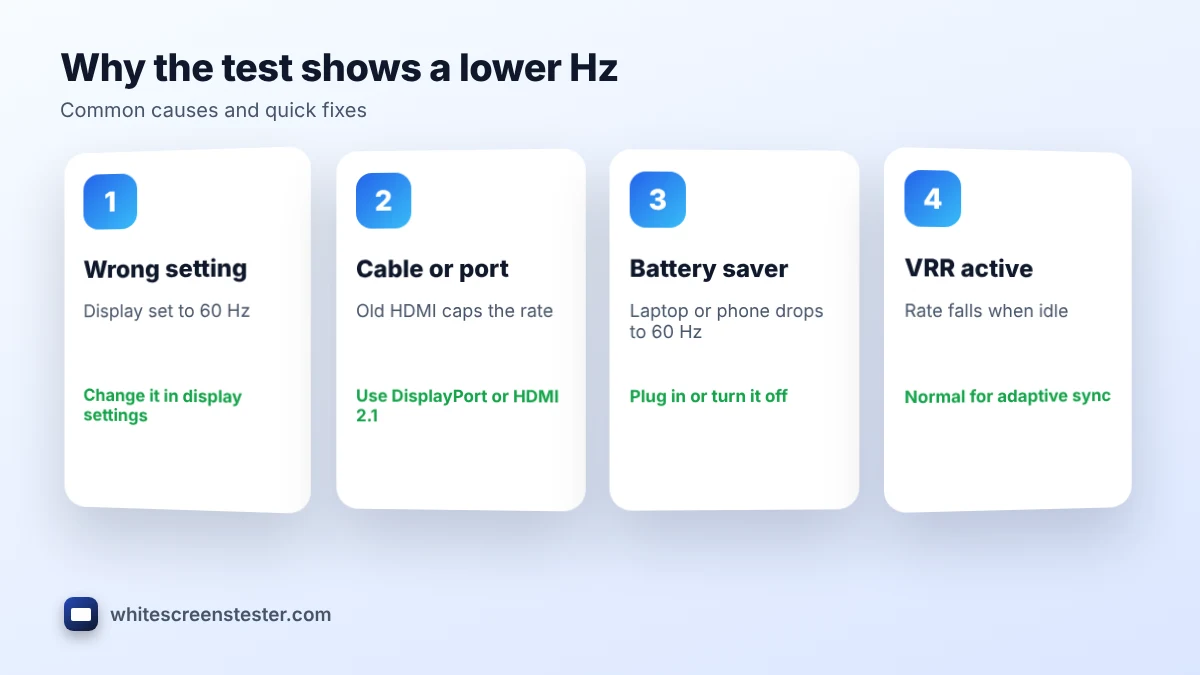
- The refresh rate is set lower than the maximum. Many monitors ship at 60 Hz. See how to change it below.
- The cable or port cannot carry it. Older HDMI cables and ports may cap 1440p or 4K at 60 Hz. Use DisplayPort or an HDMI 2.1 cable.
- Battery saver is on. Laptops and phones often drop to 60 Hz on battery.
- Variable refresh rate (VRR) is active. G-SYNC, FreeSync and adaptive phone displays lower the rate when little is moving, which is expected.
- The browser is throttled. Background tabs, power-saving modes and remote desktop sessions can limit frame rate.
How to Check and Change Monitor Refresh Rate
- Windows 11 and 10: Settings, System, Display, Advanced display, then choose a rate in Choose a refresh rate.
- macOS: System Settings, Displays, then pick a value in the Refresh Rate menu (ProMotion MacBooks can use ProMotion).
- iPhone and iPad: ProMotion models run up to 120 Hz automatically. Turning on Limit Frame Rate in Accessibility, Motion caps it at 60 Hz.
- Android: Settings, Display, Smooth display or Motion smoothness, then select the higher option.
- Consoles and TVs: enable 120 Hz output in the console video settings and use an HDMI 2.1 port on the TV.
After any change, run the refresh rate test again to confirm the new value is really active.
What Is a Good Refresh Rate?
For office work and video, 60 Hz is fine, and most films are only 24 frames per second. For gaming, 120 to 165 Hz is a clear step up that most people notice, as long as the PC or console can produce enough frames. 240 Hz and above mainly helps competitive players. For TVs, 120 Hz panels handle sports and console games more smoothly than 60 Hz ones. Phones at 90 or 120 Hz feel noticeably smoother when scrolling. Whatever you choose, a quick refresh rate test confirms the screen is really running at it.
Refresh Rate vs Motion Blur
A high refresh rate does not guarantee sharp motion. Slow pixel response causes trails behind moving objects, even at 144 Hz. To check that, use the ghosting test. For a full check of a new screen, follow our new monitor checklist, and look for faulty pixels with the dead pixel test.
Frequently Asked Questions
Is this refresh rate test accurate?
It measures how often the browser can draw to your screen, which matches the display rate on almost all systems. Results within about 1 Hz of the rated value are normal.
Why does it show 60 Hz on my 144 Hz monitor?
The display is usually set to 60 Hz in the operating system, or the cable cannot carry 144 Hz. Change the setting and check the cable.
Does the refresh rate test work on phones and TVs?
Yes. Open the page in the device browser. Some TV browsers are limited to 60 Hz even if the panel supports more.
Is 60 Hz good enough?
For work, reading and video, yes. For fast games, 120 Hz or more feels smoother and more responsive.