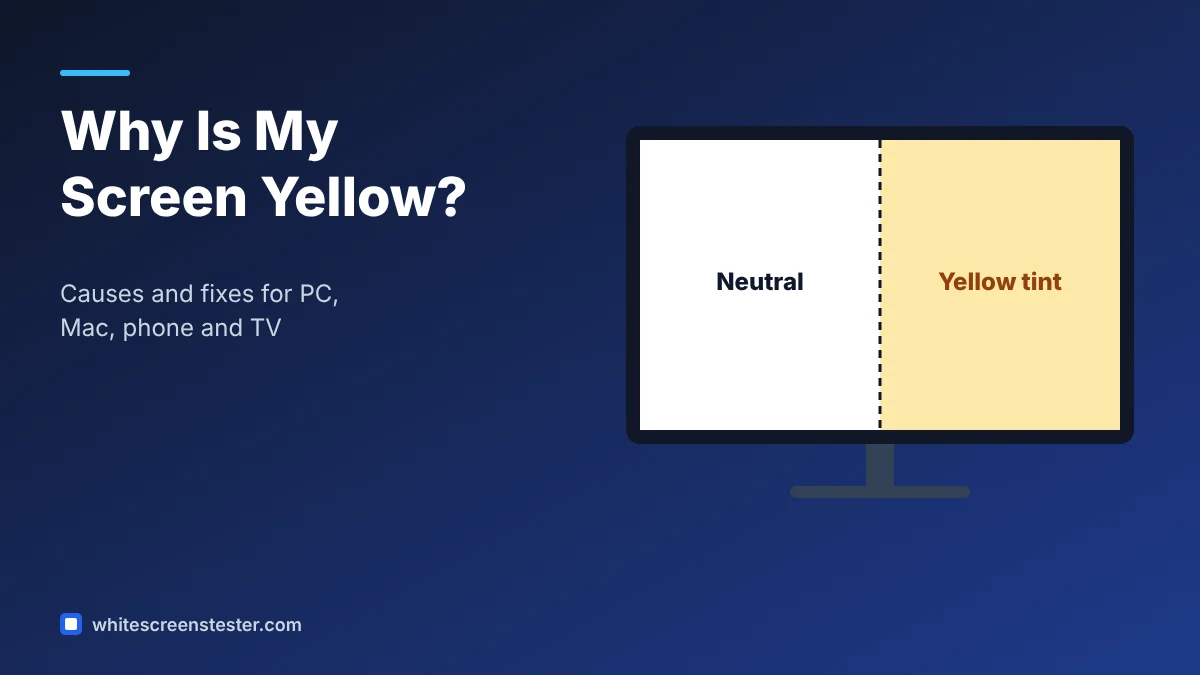
A yellow tint can appear on a computer, phone or TV screen overnight, or it can creep in slowly. In most cases, the cause is a setting that warms colours to reduce blue light. Less often, it is a cable, a driver, or a panel that is ageing. This guide helps you find the cause step by step, starting with the quickest fixes.
First, Confirm the Tint
Open a full white screen and look at it in normal room light. White should look neutral, not cream or yellow. Compare it with a sheet of white paper or another device. Then open the yellow screen and blue screen to see whether colours look balanced. If only part of the screen is yellow, skip to the section on patches and edges.
Common Causes and Fixes
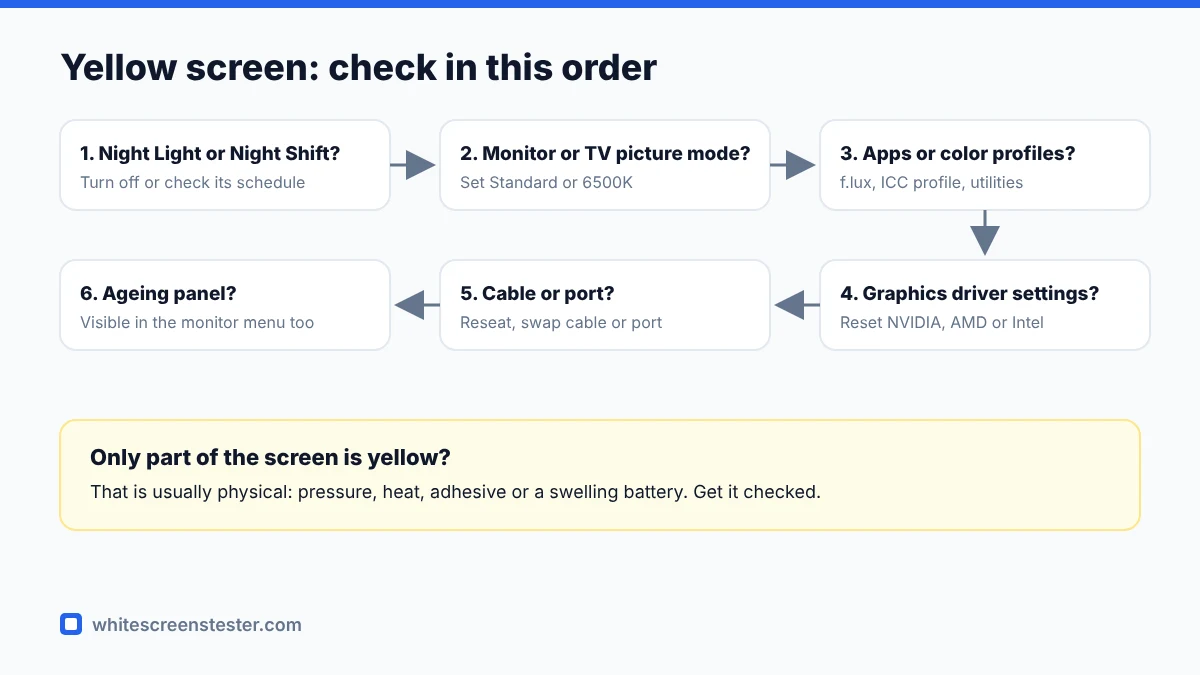
1. Night Light, Night Shift or Blue Light Filter
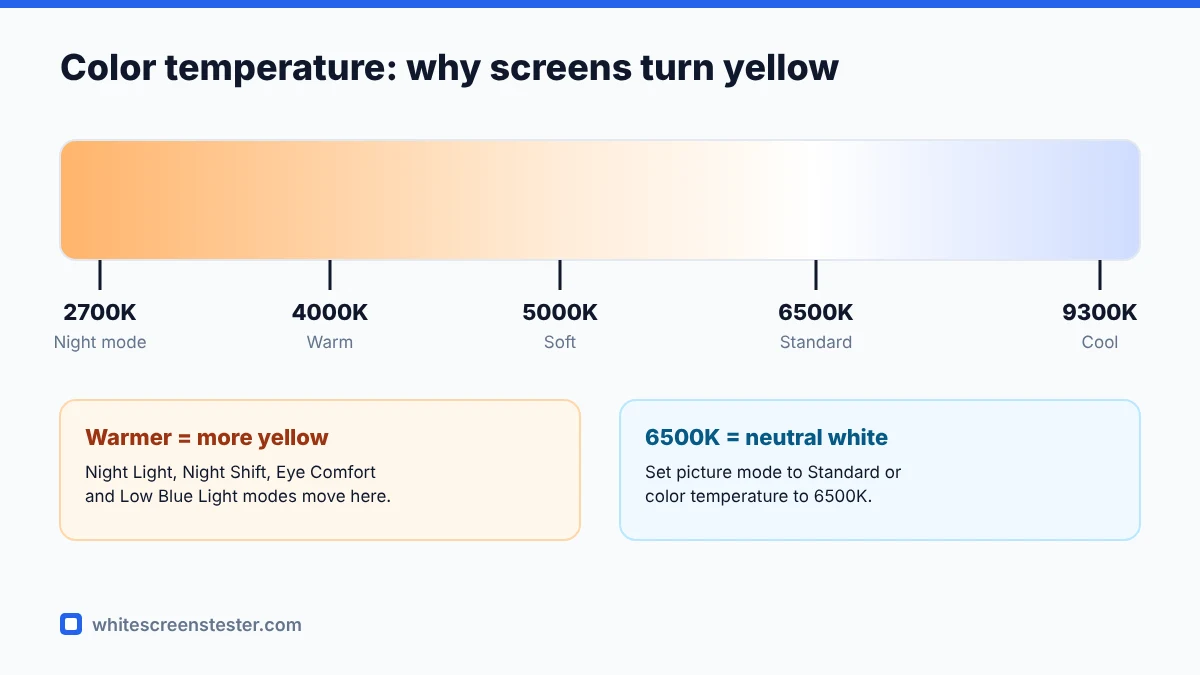
This is the most common cause. These features shift the screen toward warm colours, often on a schedule, so the screen can suddenly look yellow in the evening.
- Windows: Settings, System, Display, then turn off Night light or check its schedule.
- macOS: System Settings, Displays, then Night Shift. Also check True Tone, which adjusts colour to room light.
- iPhone and iPad: Settings, Display & Brightness, then check Night Shift and True Tone.
- Android: Settings, Display, then Night Light, Eye Comfort or Blue Light Filter, depending on the brand.
2. Monitor or TV Picture Mode
Many monitors have “Low Blue Light”, “Reading” or “Eye Saver” modes, and many TVs have “Warm” colour temperature as the default for films. Open the on-screen menu and set the colour temperature to Normal, Standard or 6500K, or reset the picture settings to default.
3. Third-Party Apps and Colour Profiles
Apps such as f.lux, manufacturer utilities and graphics control panels can warm the screen too. Check for these in your system tray or menu bar. On Windows, also check the colour profile in Colour Management; on Mac, check the display profile under Displays.
4. Graphics Driver Settings
Colour settings in the NVIDIA, AMD or Intel control panel can override Windows. Reset them to defaults, and update the graphics driver if the problem started after an update.
5. Loose or Faulty Cable
A damaged or loose HDMI, DisplayPort or VGA cable can lose a colour channel. If blue is missing, the image looks yellow. Reseat both ends, try another port, or try another cable. If the tint changes when you move the cable, you have found the cause.
6. Ageing Panel or Backlight
Older LCD backlights and OLED panels can shift colour slowly over years. If settings, cables and drivers are ruled out, and the tint is visible even in the monitor’s own menu, the panel itself is the likely cause. Calibration can help with mild shifts.
Yellow Patches or Edges
If only part of the screen looks yellow, the cause is usually physical:
- Pressure or heat: phones and laptops can show yellow patches near batteries or hinges. A swelling battery is a safety risk; stop using the device and have it checked.
- Glue or adhesive marks: some phones show yellowish tints near edges after a screen replacement or in the first days of use. Mild cases often fade.
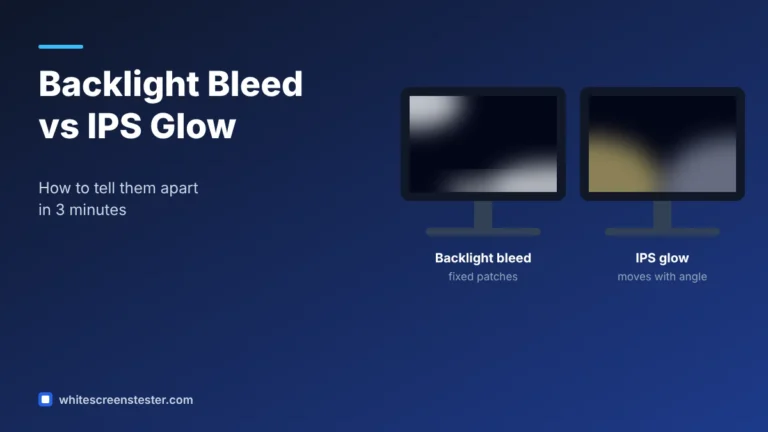
- Backlight unevenness: use the screen uniformity test to see the shape of the problem.
How to Check if the Fix Worked
- Turn off any warm-light features and reset the picture mode.
- Reload the white screen tester in full screen.
- Compare white with paper or another display.
- Cycle through red, green and blue to make sure every colour channel looks strong.
If you notice other colour casts, our guides on purple or pink tint and orange screens cover similar fixes.
Quick Answers
Is a yellow screen bad for my eyes?
No. A warm tint is what blue-light features are designed to produce. It only matters if you need accurate colours, for example for photo editing.
Why is my screen yellow only at night?
A scheduled Night light, Night Shift or Eye Comfort mode is almost certainly turning on. Check its schedule.
Why does a screenshot look normal on another device?
Screenshots capture the image data, not the display’s colour output. If the screenshot looks normal elsewhere, the cause is your display settings or hardware, not the content.