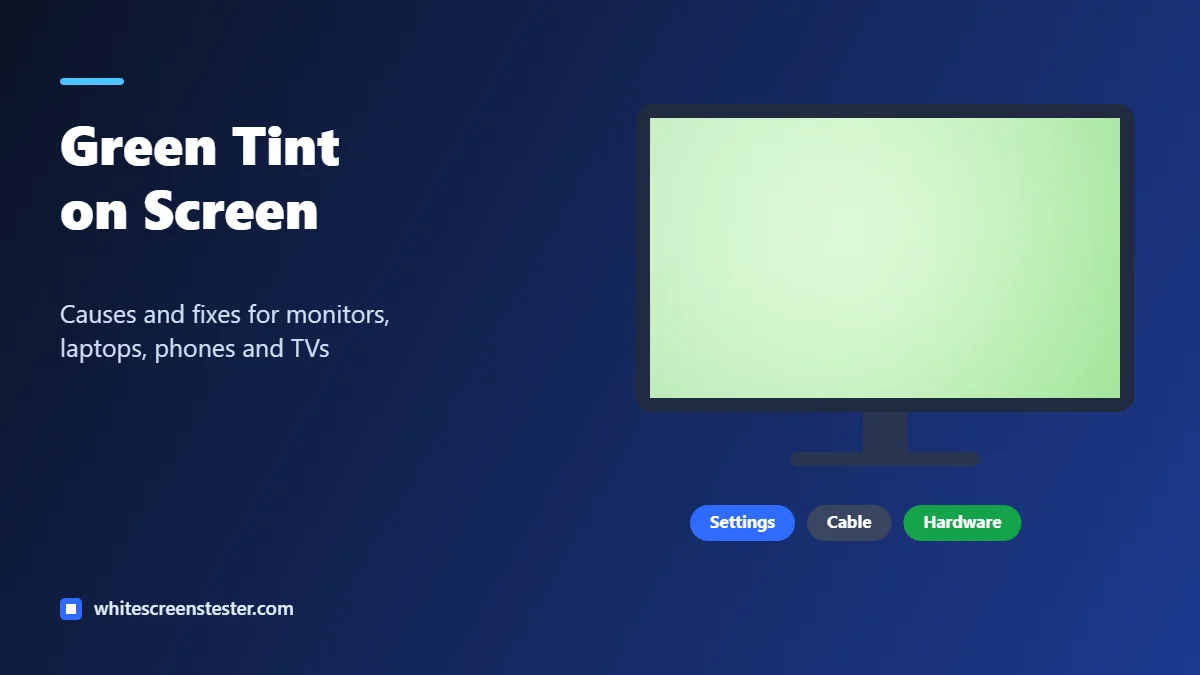
Green Tint on Screen? Causes and Fixes for Monitors, Laptops, Phones and TVs
A green tint on screen can show up as a faint green cast over everything, a green half or edge, or a picture that turns fully green. The cause is almost always one of three things: a color setting, a bad signal between the device and the display, or a hardware fault in the panel. This guide helps you find out which one you have in a few minutes, then fix it.
Quick Check: Is It the Screen or the Content?
- Take a screenshot and open it on another device. If the screenshot looks normal there, the problem is in your display or its connection, not in the image itself.
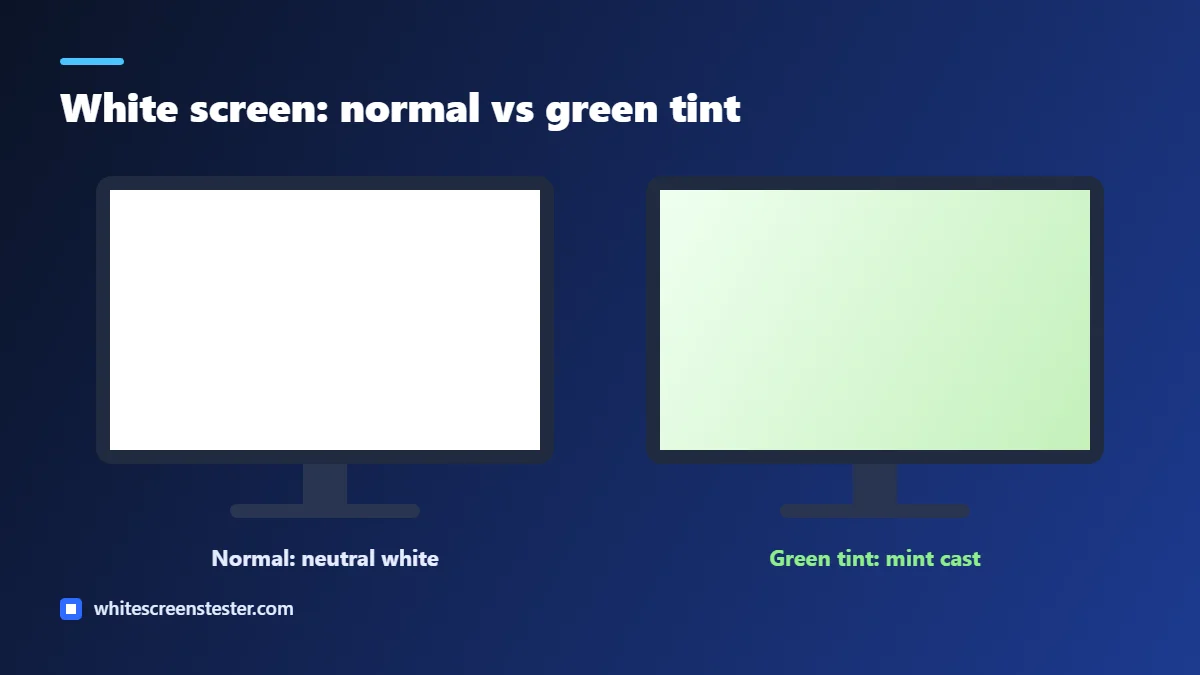
- Open a full white screen and look at it in normal room light. White should look neutral. A green or mint cast confirms the tint.
- Open the monitor or TV on-screen menu. The display draws this menu itself. If the menu also looks green, the display is at fault. If the menu looks normal, the cause is the computer, the cable or a setting.
- On a computer, watch the startup logo. If the boot screen is already green, the cause is hardware or the cable, not Windows or macOS.
A green tint is the opposite of a purple tint. Purple appears when green is missing. Green appears when green is too strong or when red and blue are weak. If your screen looks purple or pink instead, read our guide to purple or pink tint. For a warm cast, see why is my screen yellow.
How to Fix a Green Tint on a Monitor or Laptop
1. Reset the display color settings
Open the monitor menu and choose Factory Reset or Reset Color. Set the color temperature to a standard preset such as 6500K, sRGB or Standard. If you use a User or Custom color mode, make sure the Green value is not higher than Red and Blue.
2. Check the cable and port
Unplug the HDMI, DisplayPort or USB-C cable at both ends, look for bent pins, then reconnect it firmly. Try another cable or port if you have one. A damaged cable can weaken the red and blue signals, so the picture looks green. If the tint flickers when you move the cable, replace the cable.
3. Turn off color filters and night modes
- Windows 11: go to Settings > Accessibility > Color filters and turn color filters off. Also check Settings > System > Display > Night light.
- macOS: go to System Settings > Accessibility > Display and turn off Color filters. Then open System Settings > Displays and choose the default color profile for your display.
4. Check the graphics driver color output
Open NVIDIA Control Panel, AMD Software or Intel Graphics Command Center. Reset any custom color, digital vibrance or gamma changes to default. In the output settings, set the color format to RGB and the dynamic range to Full for a computer monitor. A mismatch between RGB and YCbCr output over HDMI is a common reason for a green or pink cast.
5. Restart or reinstall the graphics driver
On Windows, press Windows + Ctrl + Shift + B to restart the graphics driver. The screen goes black for a moment and comes back. If the tint started after an update, roll back or reinstall the driver from Device Manager or from your graphics card maker.
6. Calibrate if the tint is slight
If a faint tint stays after a reset, calibrate the display. Our monitor calibration page has free test patterns and simple steps.
When a Green Tint Means a Hardware Fault
Settings and drivers cannot fix a tint that comes from the panel. These signs point to hardware:
- The tint stays when the display shows its own menu or a “no signal” message.
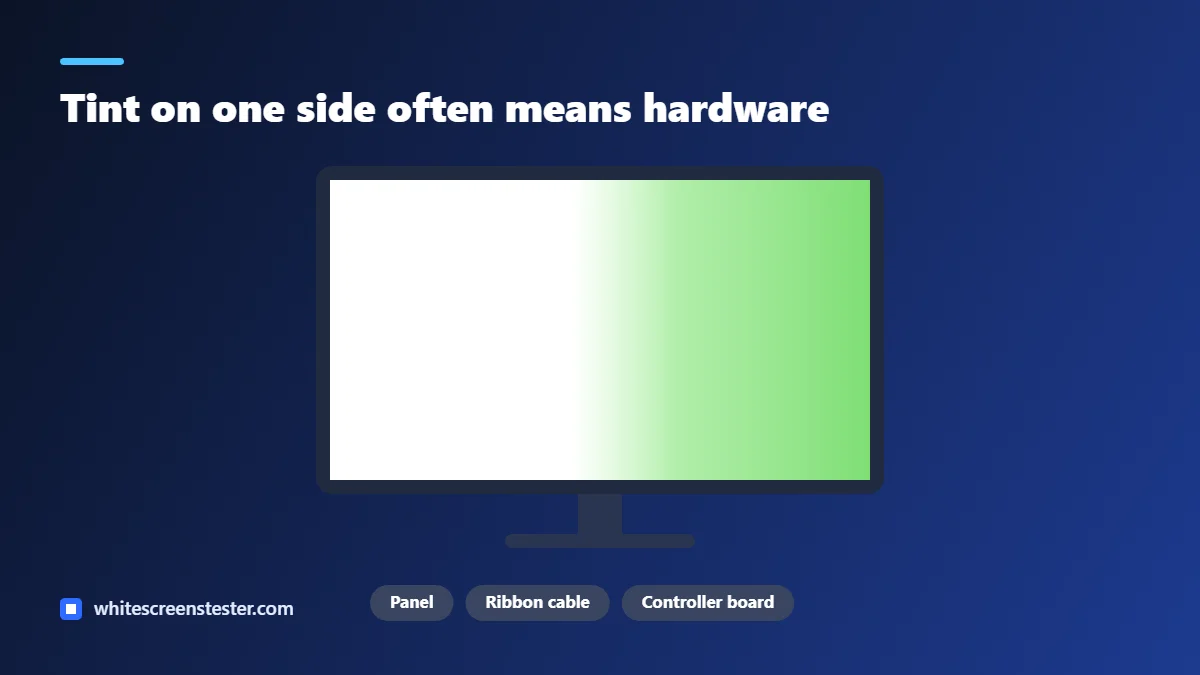
- Only one side, one edge or one half of the screen is green.
- Green lines or bands appear along with the tint.
- On a laptop, the tint changes when you move the lid or press the bezel.
These signs point to the panel, its ribbon cable or the controller board. On laptops, a worn display cable in the hinge is a common cause. This needs a repair. Check your warranty first, then contact the manufacturer or a repair shop.
Green Tint on a Phone
- iPhone: go to Settings > Accessibility > Display & Text Size > Color Filters and turn it off. Also check Night Shift and True Tone under Settings > Display & Brightness.
- Android: go to Settings > Accessibility > Color correction and turn it off. The name can differ by brand. Also check the screen mode or color profile in Display settings.
Some OLED phones show a faint green cast only at very low brightness in a dark room. If it disappears at medium brightness, it is a trait of the panel, not a new fault. If the tint appeared after a drop or water exposure, or comes with lines or flickering, the display is likely damaged. Our guides to lines on a phone screen and common phone screen problems explain the next steps.
Green Tint on a TV
- Switch the picture mode to Standard, Movie or Filmmaker Mode.
- In the expert or advanced picture settings, set Tint (or Hue) back to its center value and reset the white balance.
- Reseat the HDMI cable and try another HDMI input.
- Open the TV home menu or a built-in app. If these look normal but one source is green, the problem is that source device or its cable.
- Run the TV picture test or self-diagnosis if it has one. A green tint on the TV’s own test picture means the TV is at fault.
Test Your Screen After the Fix
Open a full-screen white screen, then a gray screen. Both should look neutral across the whole panel. Then run the screen uniformity test to check for green patches near the edges and corners.
Frequently Asked Questions
Why did my screen suddenly turn green?
A sudden change usually comes from a loose cable, a driver update or a changed setting such as a color filter. Check the cable and restart the driver first, then check your settings.
Can a green tint fix itself?
A tint caused by a setting or a loose cable goes away once you fix it. A tint caused by a failing panel or a worn laptop cable usually gets worse over time.
Is a green tint on a new monitor a defect?
If the tint stays after a factory reset, with a different cable and on another computer, treat it as a defect. Contact the seller while you can still return it. Our new monitor checklist lists the other tests to run.
Does the green screen test help with a green tint?
Not directly. The green screen page shows only the green subpixels, so it is for finding dead green subpixels. Use the white and gray screens to check a tint.