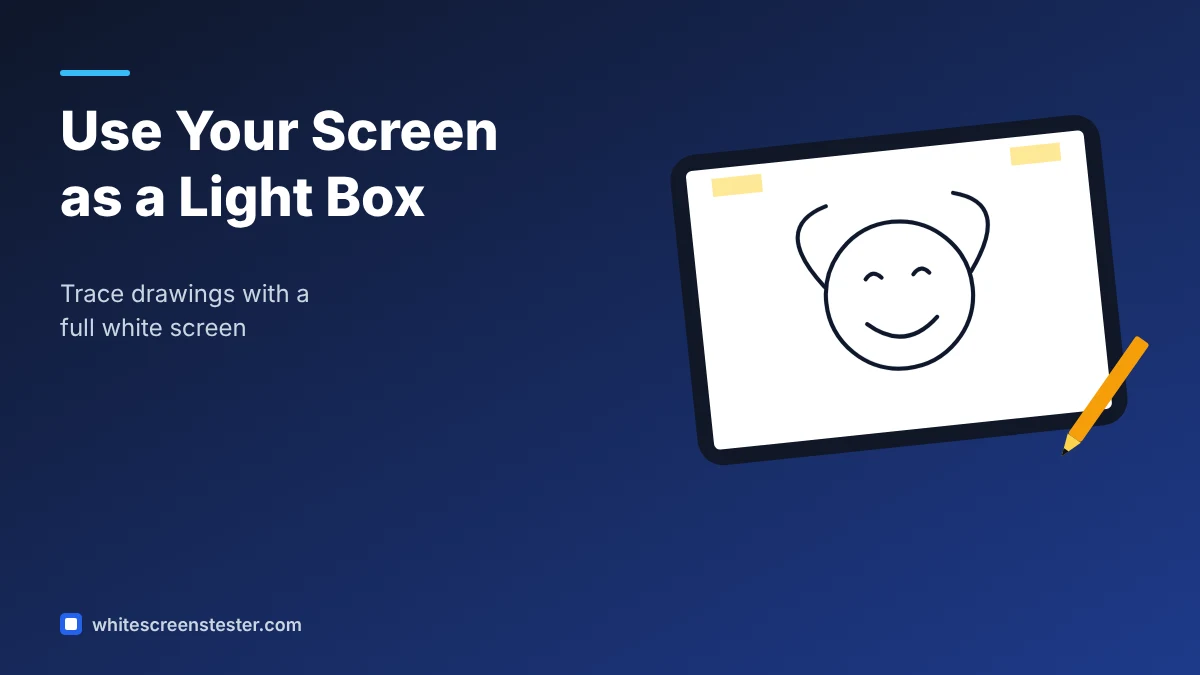
A light box makes tracing easy: you place a drawing or photo on a bright surface, lay a fresh sheet of paper on top, and the lines show through. If you do not own one, a tablet or laptop showing a full white screen can do the same job for small projects. This guide shows how to set it up safely and get clean results.
What You Need
- A tablet, or a laptop that folds flat. A phone works for very small sketches.
- Our White Screens Tester open in the browser, set to White and full screen.
- Thin paper. Printer paper (80 gsm) works; tracing paper or layout paper works better.
- Low-tack tape, such as masking tape or painter’s tape.
- A soft pencil (HB or 2B) or a fine-liner.
- Optional: a clear screen protector or a thin sheet of clear plastic to protect the glass.
Step-by-Step: Turn Your Screen Into a Light Box
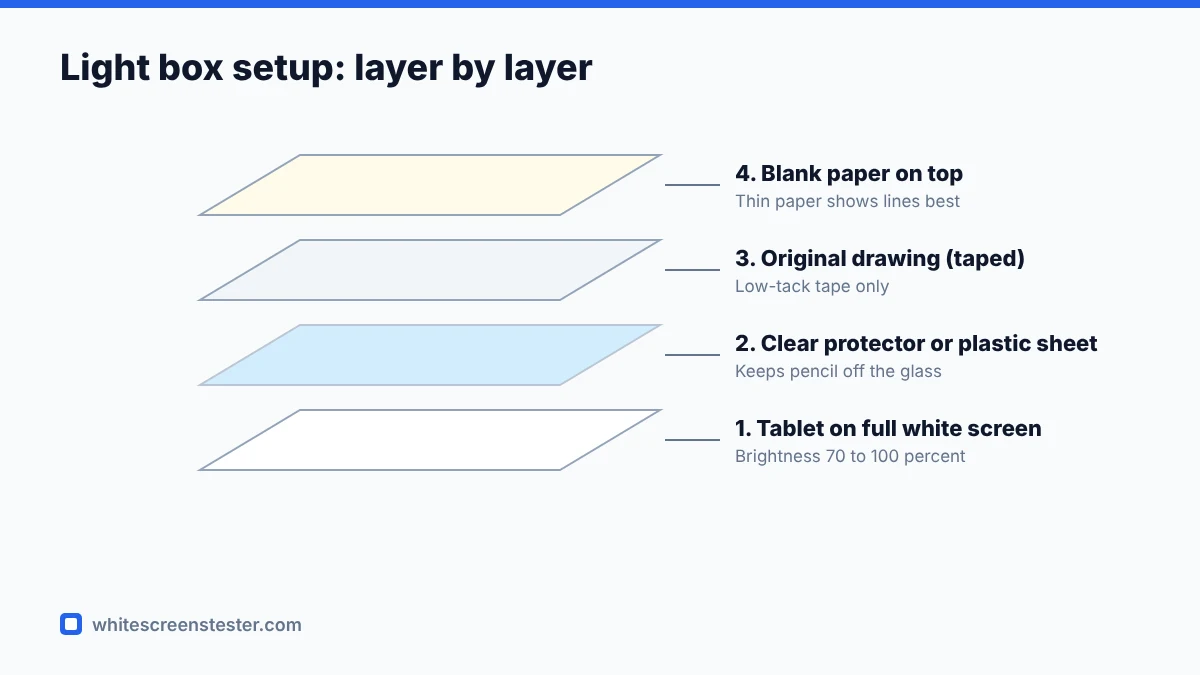
- Protect the screen. If your device has no screen protector, place a clear plastic sheet over the display first. It keeps pencil marks and pressure off the glass.
- Open the white screen. Select White and tap the full-screen button. On a tablet, lock the screen orientation so it does not rotate while you work.
- Stop the screen from sleeping. Increase the auto-lock or sleep time in your device settings for the session, so the display does not switch off mid-trace.
- Turn off touch input if you can. On iPad, Guided Access can lock touch. On Android, many devices have a pin or lock mode. This prevents taps from exiting full screen.
- Set the brightness. Start around 70 to 100 percent. Thicker paper needs more light.
- Tape down the original and the paper. Tape the original to the protector or plastic sheet, then tape your blank sheet on top, so neither slips.
- Trace with light pressure. Let the pencil do the work. Pressing hard on an LCD can leave temporary marks and, over time, damage the panel.
Tips for Better Results
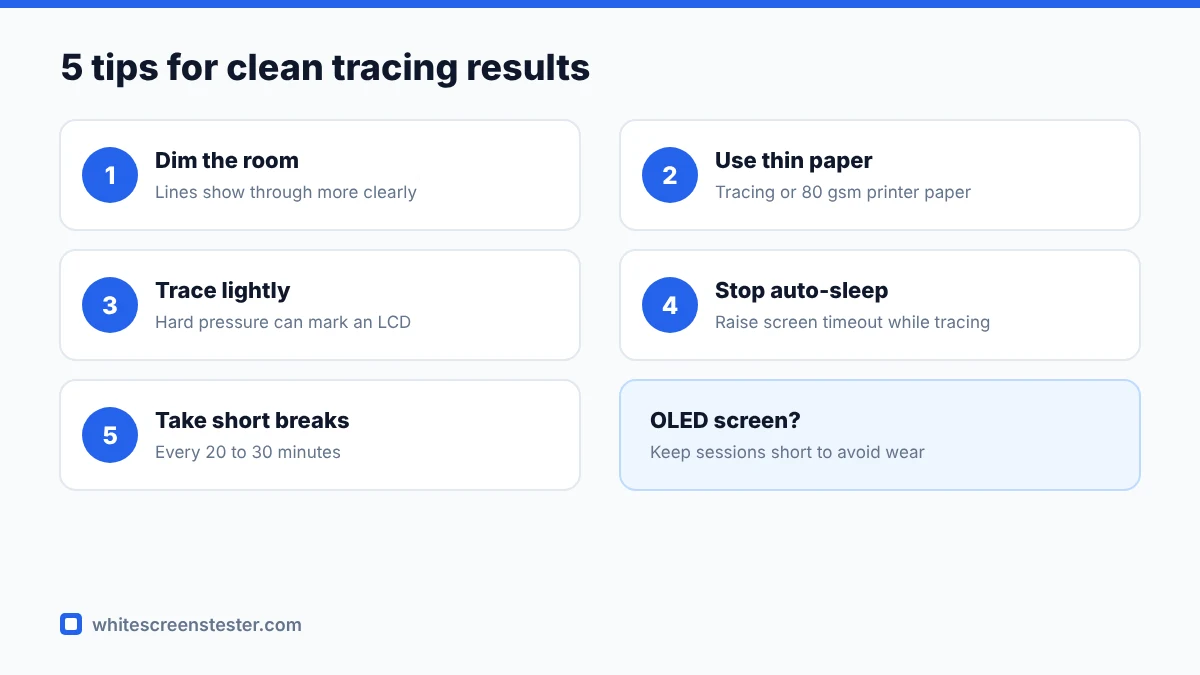
- Dim the room. Lines show through much more clearly when the surrounding light is low.
- Use thinner paper for detailed work. For watercolour or thick card, a dedicated LED light pad is a better tool.
- Try warmer white. If pure white is tiring on your eyes, use the custom colour option with a slightly warm tone such as #FFF4E0.
- Work in short sessions. Take a break every 20 to 30 minutes to rest your eyes and let the device cool.
- Need the image itself? You can download a white image in 720p, 1080p or 4K from the tool and set it as wallpaper on a device that does not stay in full screen easily.
What This Method Is Good For
- Tracing sketches and line art to refine them on a clean sheet
- Copying letters and calligraphy guidelines
- Transferring sewing, embroidery or craft patterns
- Animation and flipbook frames, where each drawing is traced from the last
- Checking film negatives or slides at a basic level
Is It Safe for Your Screen?
Showing a white image will not harm an LCD screen. The risks come from pressure and scratches, which is why a protective sheet and light pressure matter. On OLED screens, a static, full-brightness image used for many hours can contribute to uneven ageing. Short tracing sessions are fine, but avoid leaving an OLED on a static white screen for long periods. Learn more in our OLED burn-in guide.
Always remove tape gently and never tape directly onto the glass of a laptop or tablet without a protector, as the adhesive can leave residue. If you need to clean the screen afterwards, follow our guide on how to clean a screen without damaging it.
Quick Answers
Can I use my phone as a light box?
Yes, for small drawings. The small size and the risk of touches closing full screen make a tablet more practical.
Why can’t I see the lines through my paper?
The paper is probably too thick or the room too bright. Increase screen brightness, dim the lights, or switch to thinner tracing paper.
Does a white screen work as a light box for a laptop?
It works if the laptop folds flat or the screen tilts far back. Otherwise, the angle makes it awkward to draw, and a tablet is a better choice.